Order pad guide
Take a table's order, get it to the kitchen and bar, close the table, then confirm the service's sales. Payments stay on your till.
Watch it first
Step by step
Choose your name and enter your PIN
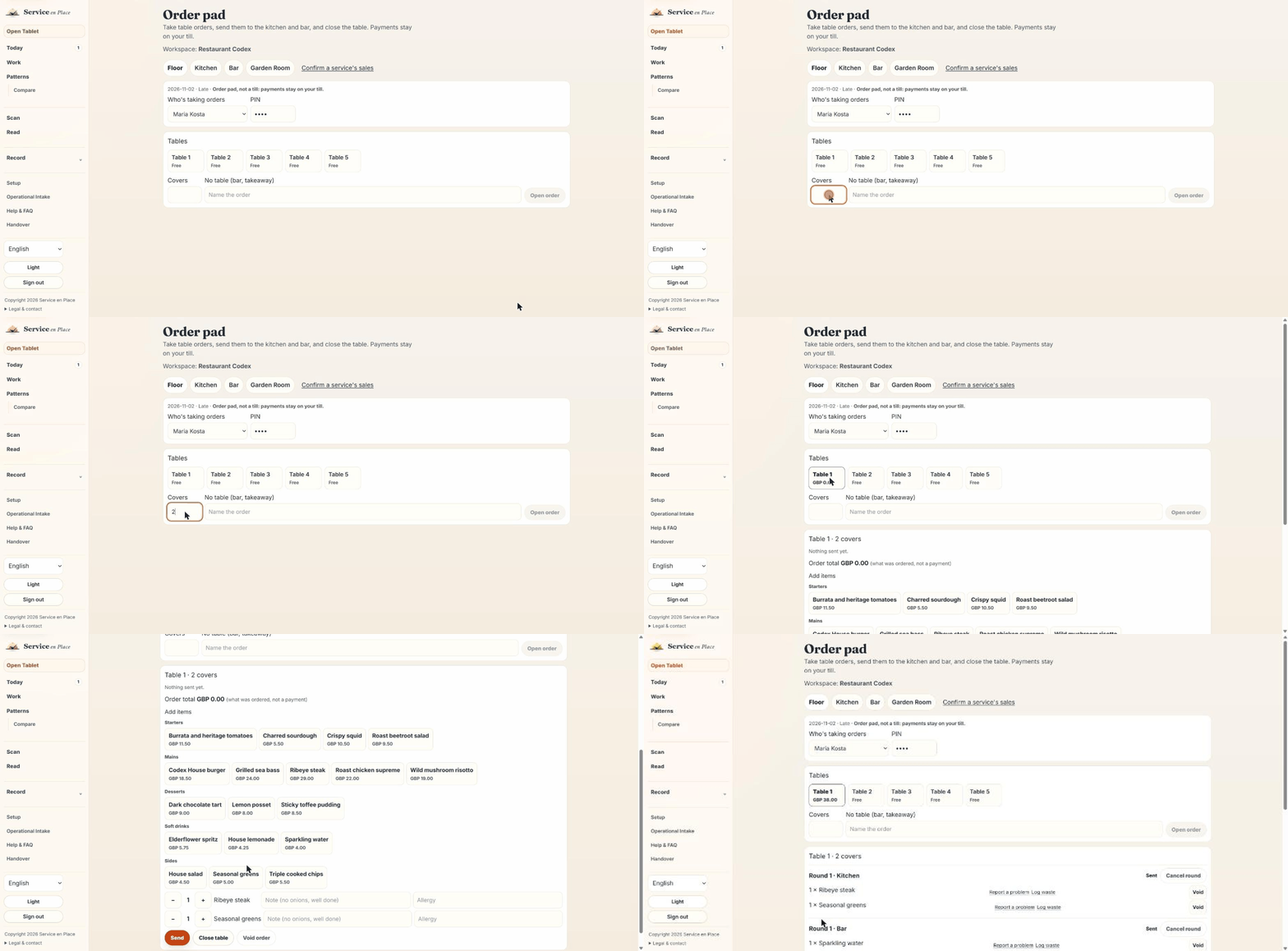
Go to Record → Floor → Order pad and stay on the Floor tab. Pick your name under Who's taking orders and type your PIN. It signs what you do next.
Enter the covers, then tap the table
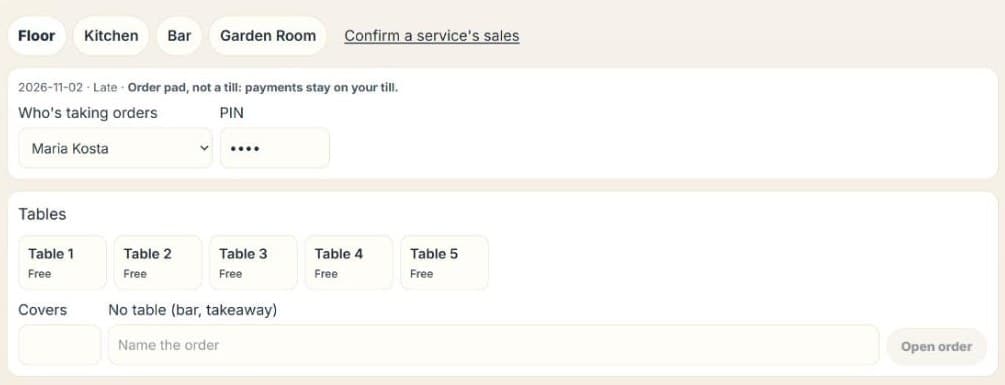
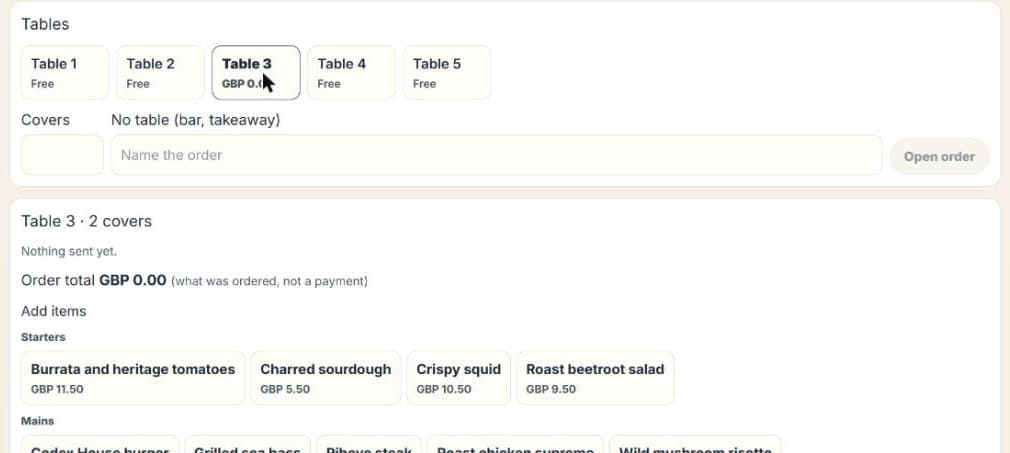
Fill in Covers first, because tapping a free table opens its order straight away. For the bar or a takeaway, type a name under No table and tap Open order.

Add the items
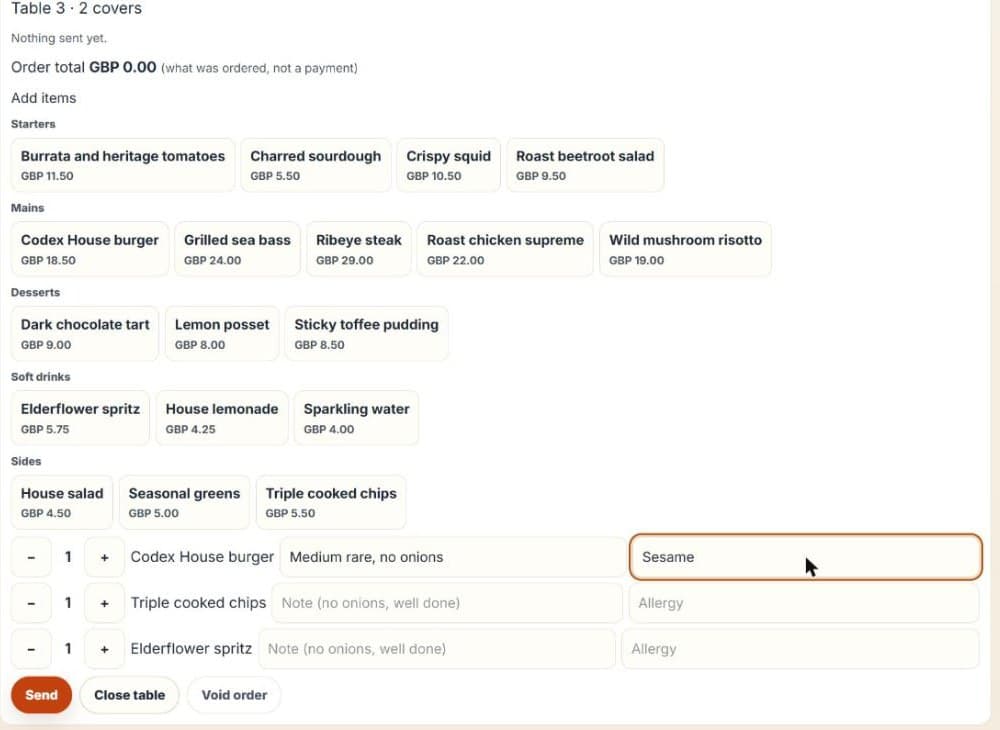
Tap an item to add it, and use − and + to change the quantity. Each item has its own note and allergy box.
Tap Send
Food goes to the kitchen and drinks go to the bar, each as its own ticket. Allergies show in bold.
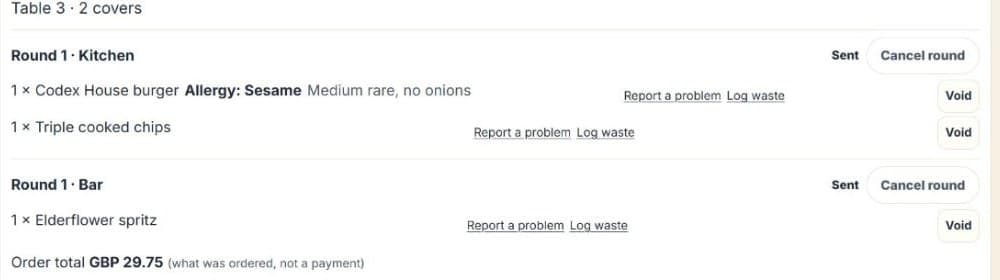
Make it in the kitchen and bar
On the Kitchen or Bar tab
Each screen shows only its own tickets. Tap Start when you begin and Ready when it's done. No PIN is needed here.
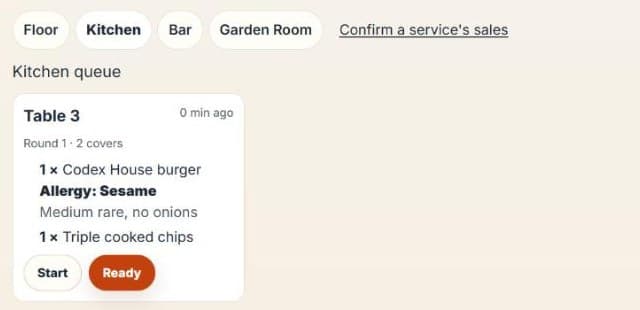
Kitchen 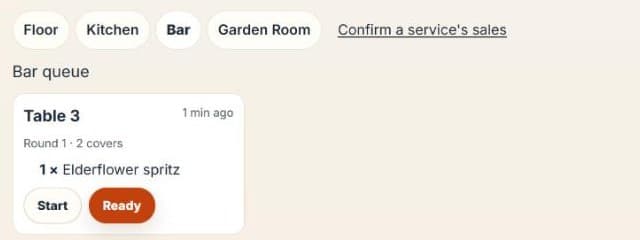
Bar Tap Collected when it leaves the pass
Back on the Floor tab
The floor screen updates by itself within a few seconds. When a round shows Ready, take it out and tap Collected.
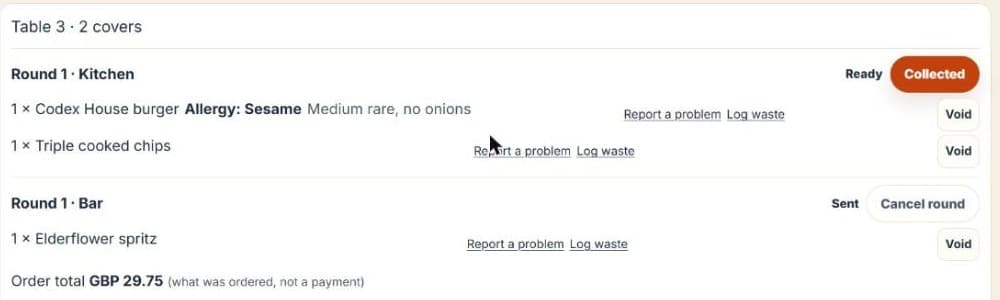
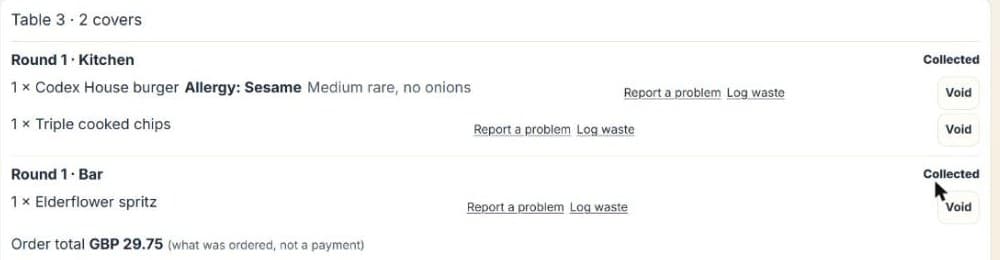
Close the table
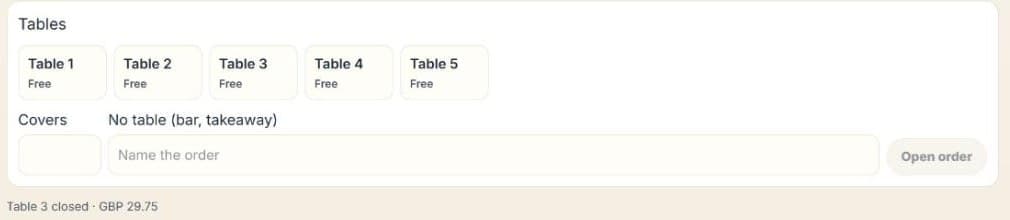
Take payment on your till as usual, then tap Close table. The table goes back to Free and the pad shows what it recorded for that table.
Confirm the service's sales
Managers, after service
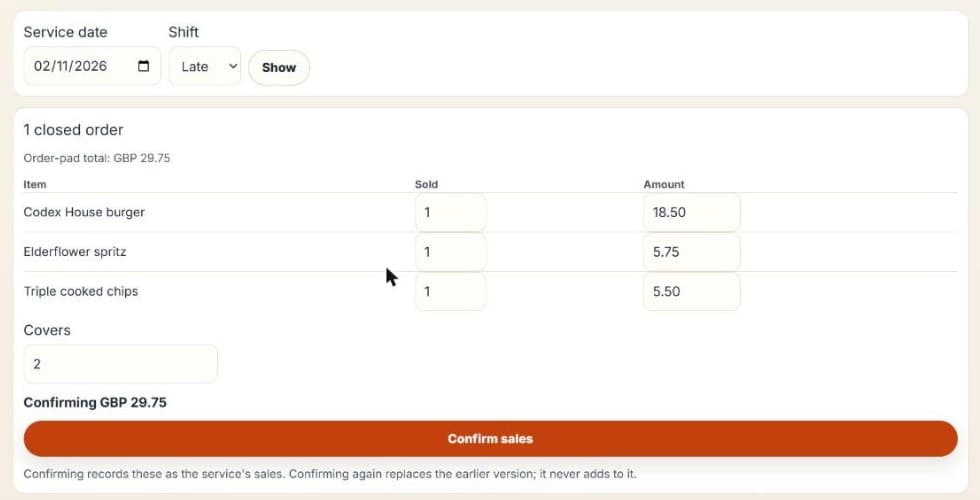
Tap Confirm a service's sales. It opens on the shift that closed an order most recently today. To see another, choose its date and shift and tap Show. If your till differs, change the amounts to match it and the page shows the difference. Then tap Confirm sales.
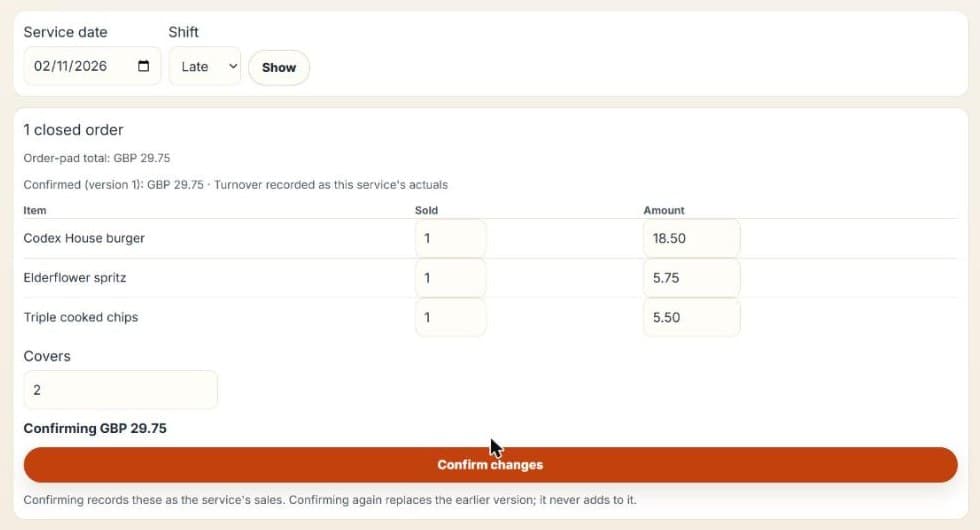
If another order closes later, come back and confirm again. The new version replaces the old one and never adds to it.
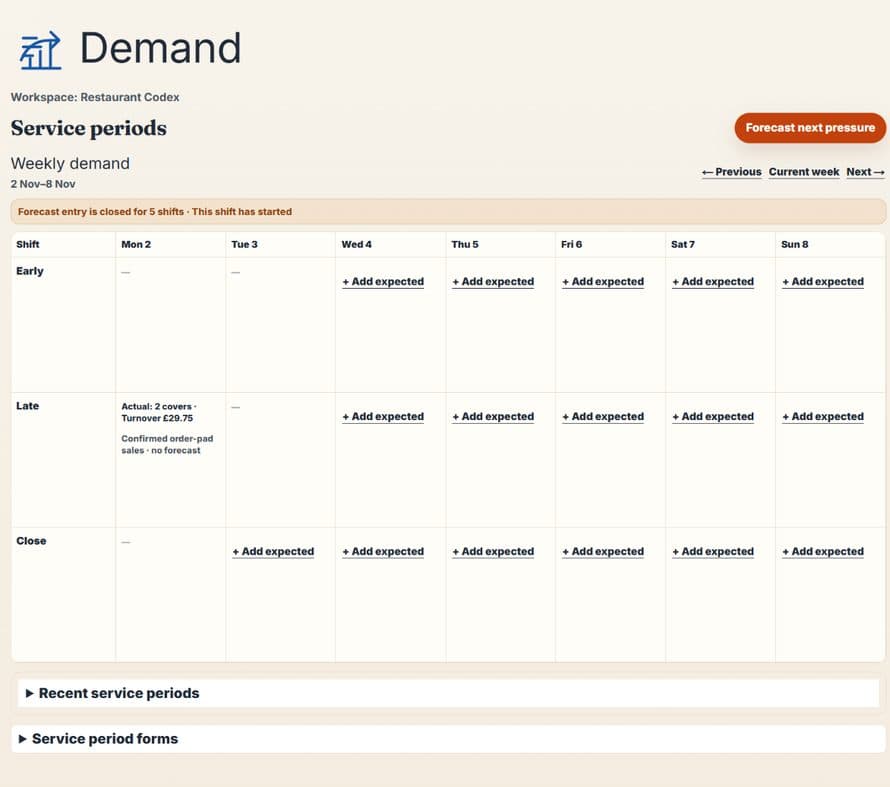
See it in Demand
Under Record → Demand, the service now shows its actual covers and turnover.
Fixing a mistake
One item is wrong
Tap Void beside it and give a reason.
A whole round is wrong and nobody has started it
Tap Cancel round and give a reason. Once the kitchen or bar taps Start, this button goes, so void the items instead.
The table left or the order was a mistake
Tap Void order and give a reason. Nothing from it counts as a sale. Any ticket still being made stays on the kitchen or bar screen for 10 minutes, marked CANCELLED, so the cook knows to stop.
A dish came back or a guest complained
Tap Log waste or Report a problem beside the item. The form opens in a new tab, already filled in with the table and dish, so the pad and your PIN stay as they were.
Good to know
- Unsent items stay with their table. You can switch tables while you're ordering. A table with unsent items shows how many, such as "2 to send", and you have to send or remove them before you can close it.
- If the page reloads, your unsent items are kept on that tablet, but you'll need to type your PIN again.
- The order total isn't a payment. It's what was ordered. The money is taken and recorded on your till.