The four steps
- Pressure scanThe only place a Read is created.
- ReadA saved judgement and one first move.
- WorkWho has each job and when it's due.
- PatternsWhat repeats across comparable periods.
Today
Everyone · every plan
Your live view of what needs doing now. It's the starting page, and it isn't one of the four steps.
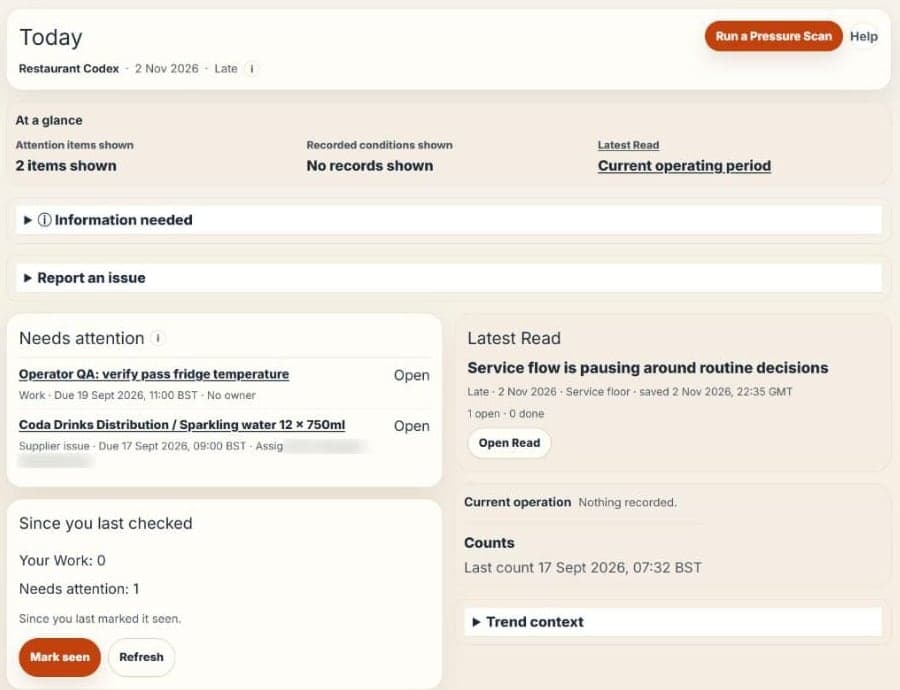
- Needs attention lists Work and problems to act on.
- Report an issue records a guest issue, maintenance issue or waste in a tap or two.
- Latest Read and Current operation show your last judgement and what's recorded this shift.
- Evidence gaps lists records that are missing or didn't load.
- Between shifts, Today shows the next shift, or the last one that ended if none is left today, and says which. If two shifts overlap, it asks you to choose.
- Operators see My shift instead: their open Work, station and shift, quick recording and the latest Read. Supervisors get a view led by the shift.
Pressure scan
Owner, Area manager, Manager · every plan · Free includes 3 completed Reads
Mark what's true about service right now, and Service en Place turns your answers into a Read.
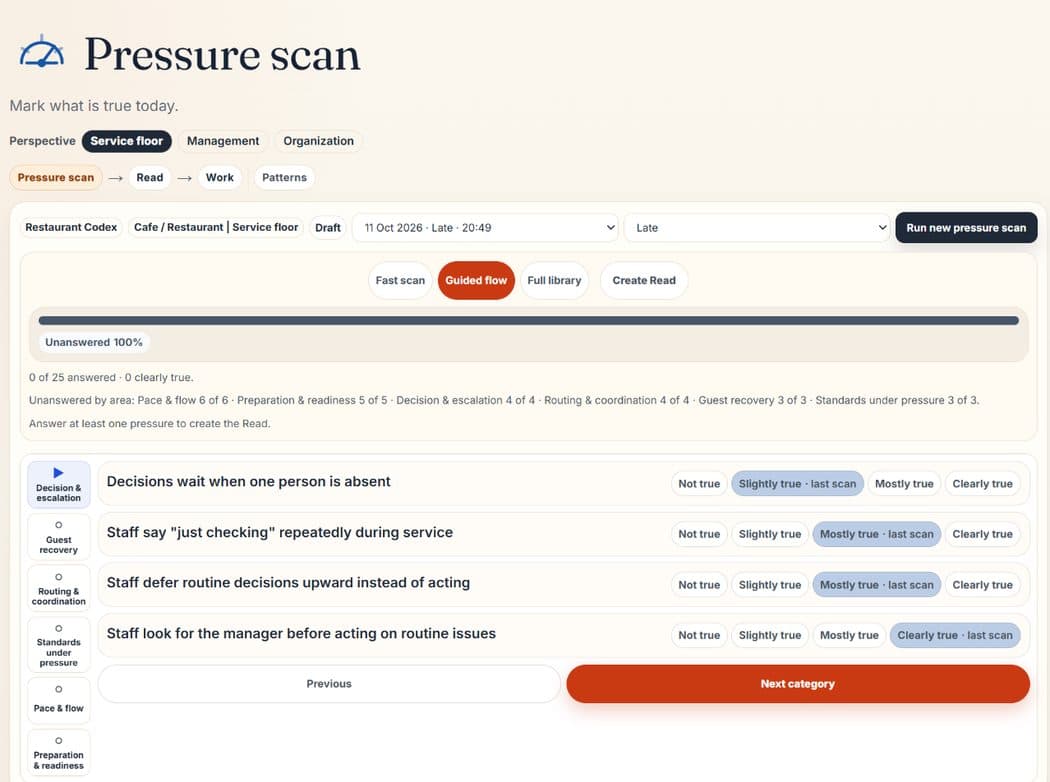
- Answer in Fast scan, Guided flow or Full library.
- Pale blue chips marked last scan show what you answered last time. They don't count until you choose.
- Answers stay in your browser until Create Read.
- Each perspective (Service floor, Management, Organization) builds its own Read history.
- Run new pressure scan starts a fresh one. Within one shift period, only the latest Read counts for comparison.
- Anyone can try the public scan at app.serviceenplace.com/scan with no account.
Read
Everyone · every plan
The locked result of a scan: your main pressure, a pressure level out of 100, a recommended move and a checklist.
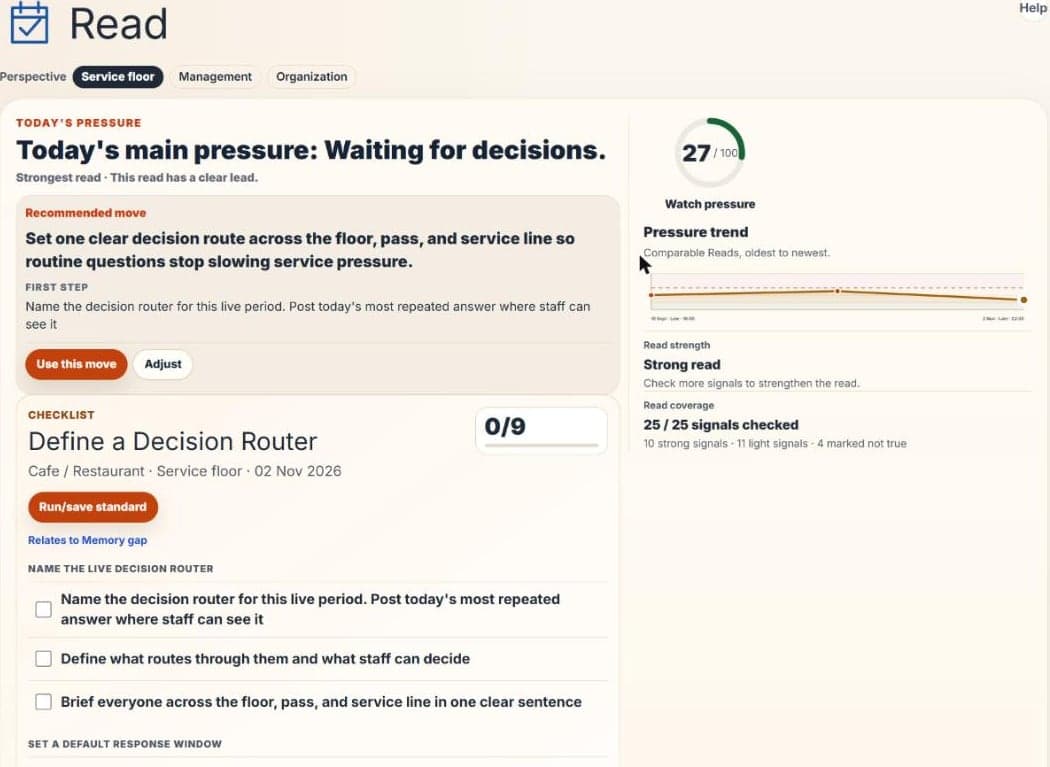
- Use this move, or Adjust to choose Change the move, Not this service or This doesn't fit. Your response is recorded and never changes this Read or future ones.
- Why this move? shows the answers behind it and the clues the Read noticed, each rated High, Medium or Low.
- Pressure trend plots comparable Reads. Read strength and Read coverage show how much of the scan was answered.
- Since this Read shows what was recorded afterwards, without changing the Read.
- Read corroboration compares answers with records: Supported, Unwitnessed or In tension.
- Correct this Read lets an Owner or Area manager invalidate a Read that should never have counted, such as a test or the wrong shift. A reason is required, and the Read stays in history without counting. To disagree with a judgement, use This doesn't fit.
- A printable report gives owners a short version first.
Work
Everyone sees their own Work · posting your own jobs, delegating and verifying need Pro or above
Every job, who has it and when it's due. Done means followed through, which isn't the same as fixed.
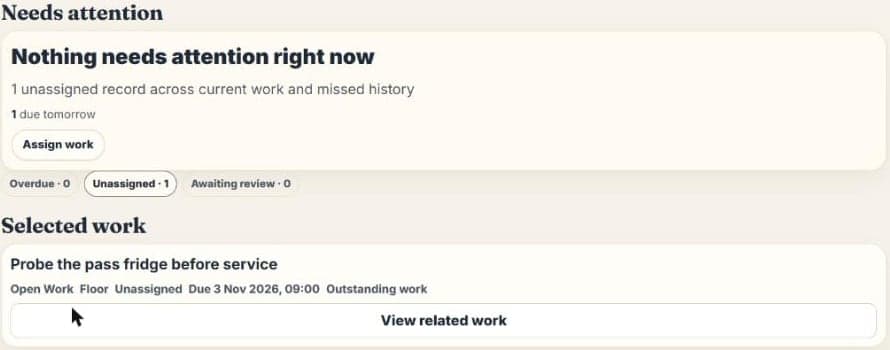
- Jobs come from a Read's move, a standard, an operating record or Post open work. While Work is empty, Open Read checklists takes you to your Read's checklist.
- Choose a station, due time, grace period and whether it also goes to the station tablet.
- Jobs show as Overdue, Unassigned or Awaiting review. Missed means a scheduled job stayed unfinished past its grace period.
- Checks finish as Checked clear, Issue found or Unable to complete. The last two stay visible as exceptions.
- Acknowledging an exception means it was seen. Resolving it means a manager recorded what changed.
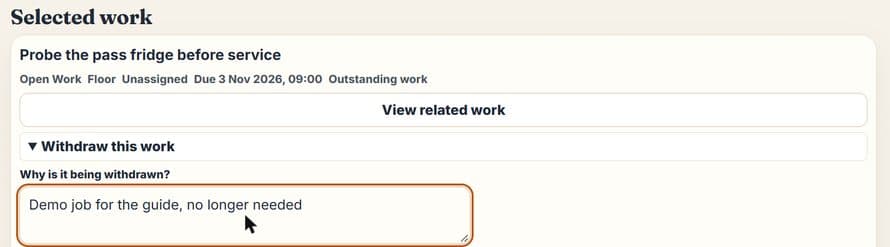
- Managers and above can withdraw a posted job that's no longer needed: open it, choose Withdraw this work and give a reason. It leaves the board and stays in history, and it doesn't mark any problem as solved.
Patterns
Owner, Area manager, Manager · Plus and above
Choose a shift period and a view to answer one question from your records. Nothing here changes a Read or creates Work by itself.
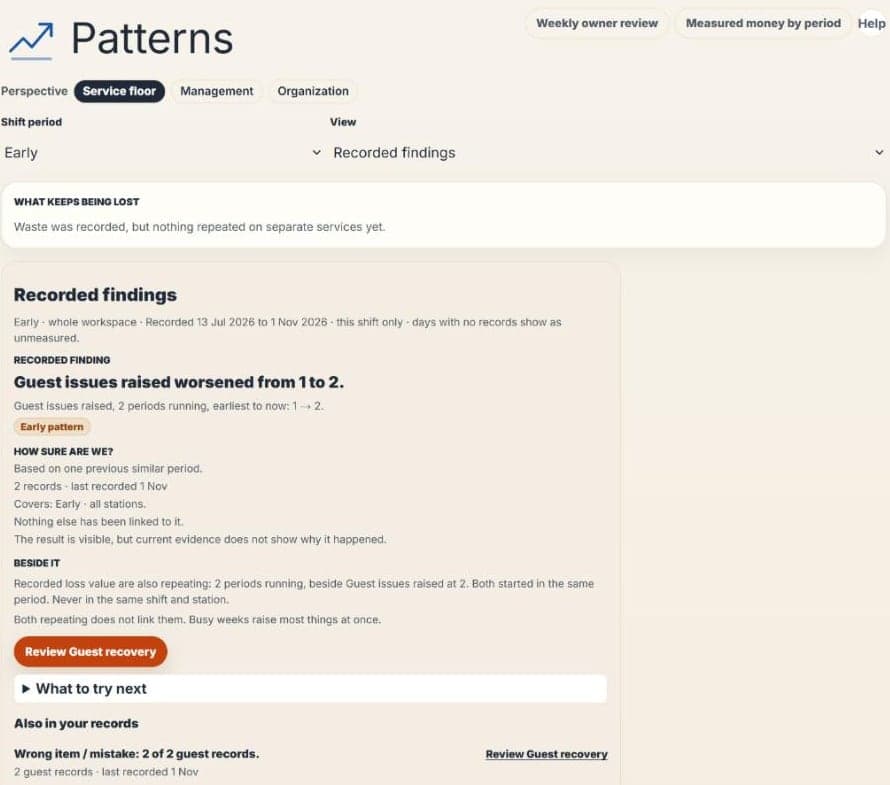
- Views include Read history, Recorded findings, dishes and revenue by weekday, main dishes per staff hour, team and cost comparisons, waste cost and forecast gaps.
- What keeps being lost leads with recurring waste. You can put a finding on Work, and Patterns then compares the next 28 days on that shift.
- Each area compares 4-week periods, up to 16 weeks back. Staffing compares week with week, and Margin Scan compares scan with scan.
- Emerging signal: happening now but not in the period before. Early pattern: also in the one period before. Established pattern: also in the two periods before. Not happening now: it has stopped.
- Beside it shows other areas repeating at the same time. It says which started first and never says one caused the other.
- A period with no records is a gap, not a clean month.
Record
Each area owns its own facts. Use only the ones your site needs. Saving a record never rewrites a Read. Most areas open for Supervisors and above, and some actions need a manager.
Demand
Expected and actual covers and turnover for each date and shift.
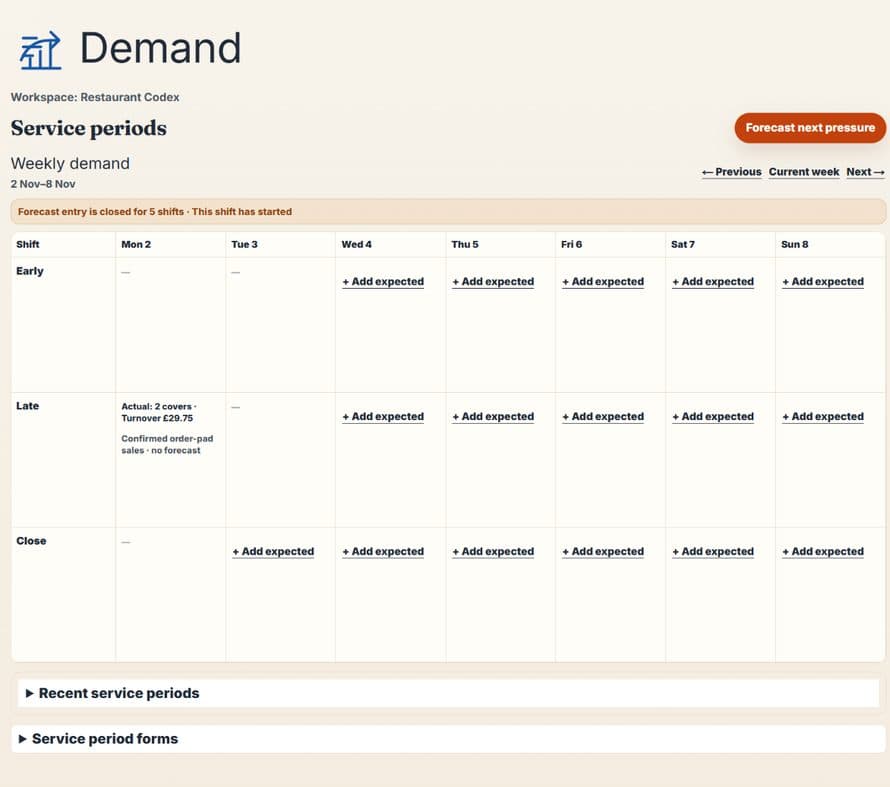
- + Add expected saves a forecast for a shift. Entry closes once that shift has started.
- Add actuals after service, or confirm sales from the order pad and they appear here.
- Managers can open a service to compare expected, planned and recorded figures. Missing figures stay missing.
Staffing
Plan cover for each station and sign off the hours actually worked.
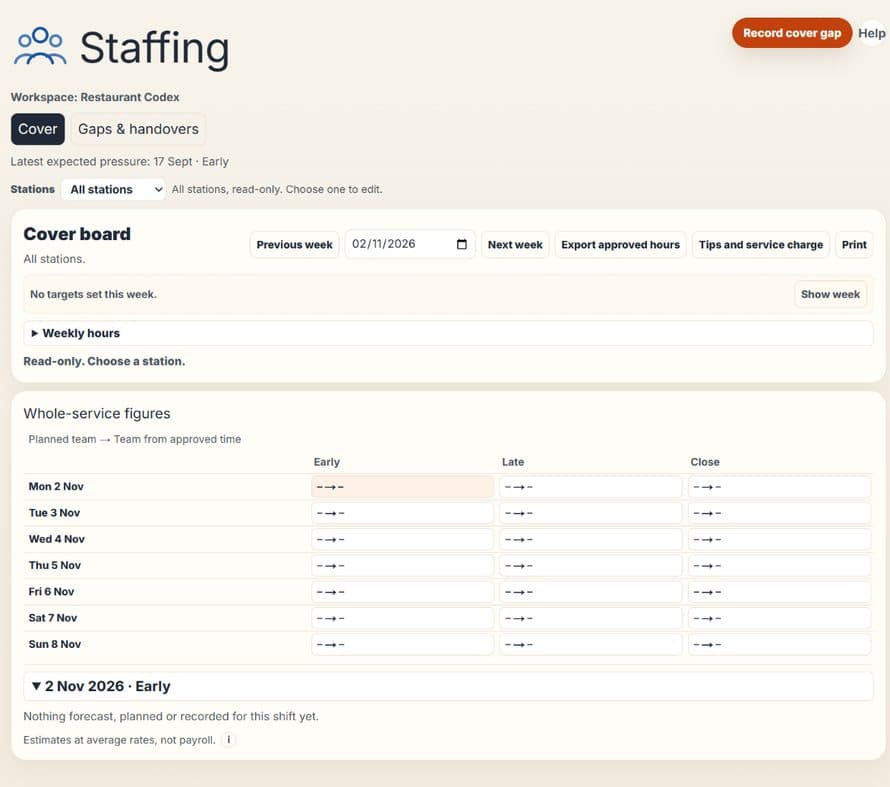
- Pick a station to edit: All stations is read-only. Set headcount and save the week.
- Weekly hours on the Cover board holds each person's own weekly figure. The rota flags someone as overloaded when they're on two overlapping shifts, or planned over that figure. Leave it empty for no limit. A roster import can fill or overwrite it.
- Staff sign in on the tablet with name and PIN. Those hours reach a manager to confirm and approve.
- Record cover gap, Export approved hours, Tips and service charge and Print sit on this page.
- Staffing costs use average rates. They aren't payroll, and one person's cost is never shown.
Guest signals
What guests tell you, good or bad, and any promise you made in response.
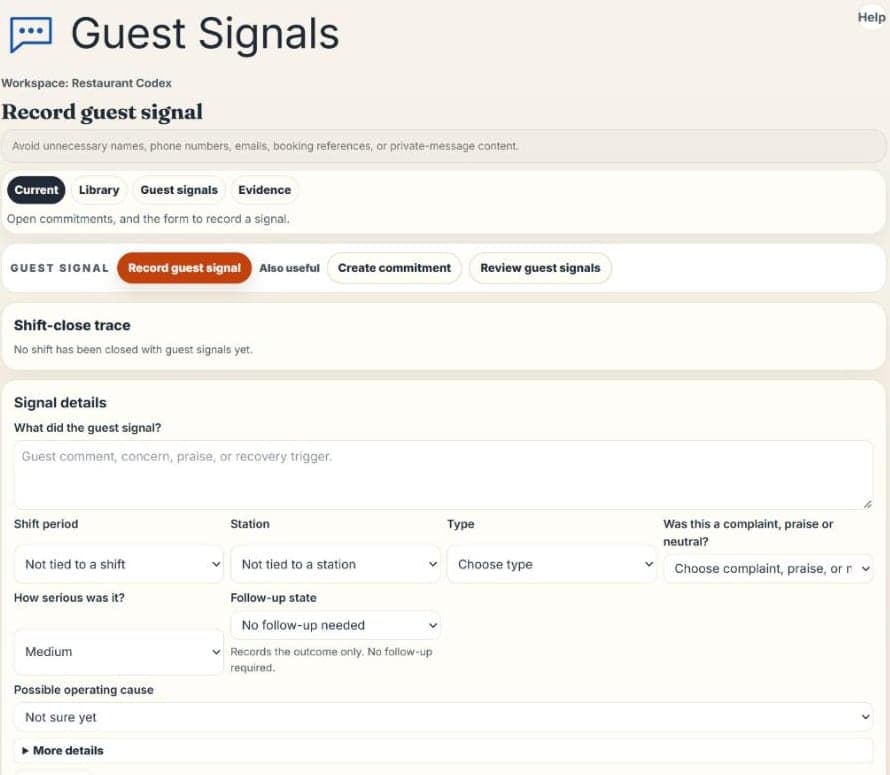
- Record what happened, its type, how serious it was, the follow-up state and a possible cause. Shift and station are optional.
- Create commitment tracks something you promised a guest.
- Leave out names, phone numbers, emails and booking references you don't need.
Maintenance
What broke, and what was done about it.
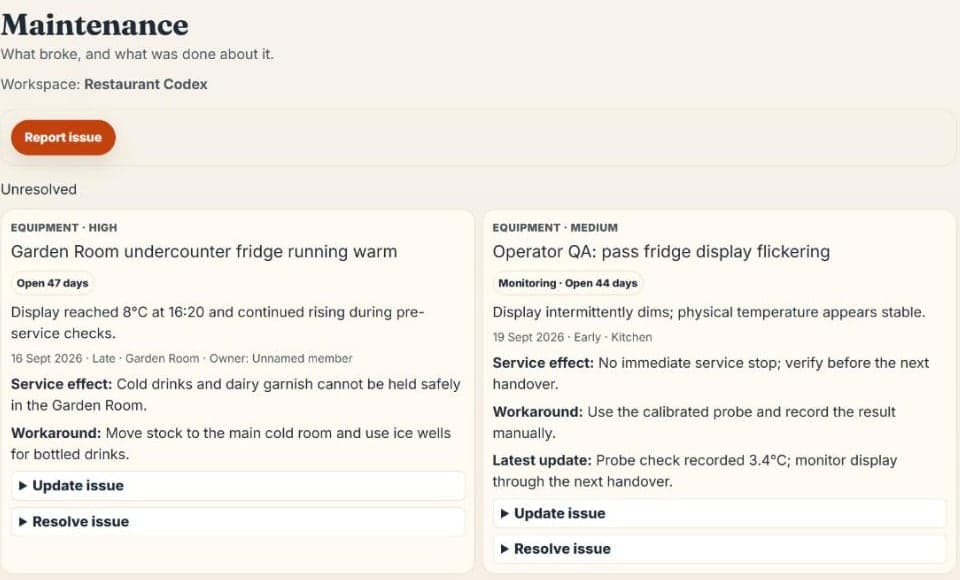
- Report issue from here, Today or the tablet.
- Each issue shows how long it's been open, its effect on service and the workaround.
- Update issue adds progress. Resolve issue closes it and moves it to Recently resolved.
Standards & checks
Saved standards, checks and training need Plus or above
Your standards, checklists, training and controls. Assigning them happens in Work.
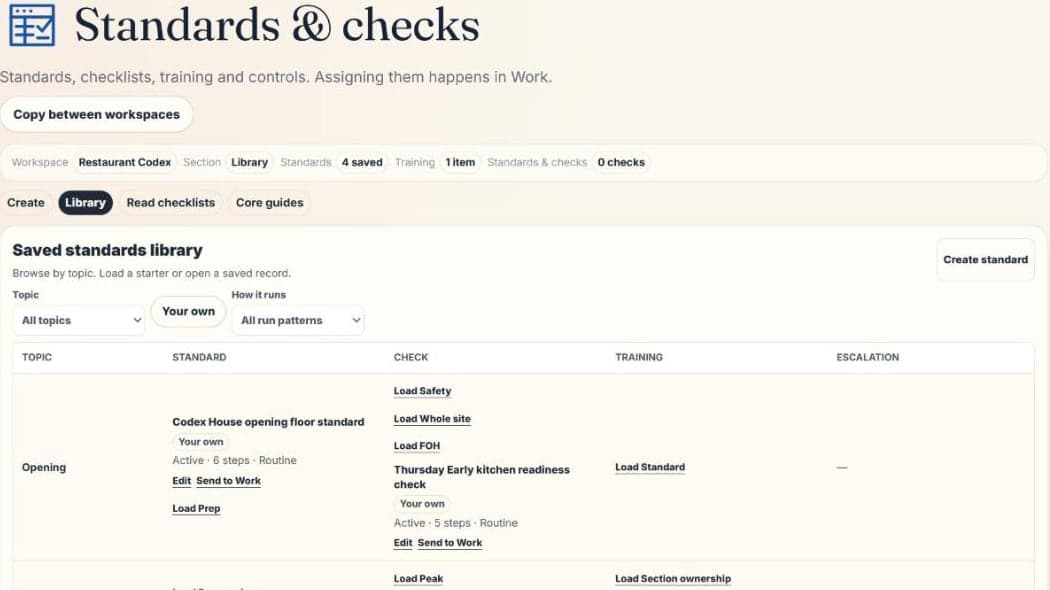
- Create makes a standard or checklist, training or a control. Starter checks give you something to adapt.
- Library holds saved records and starters by topic. Saved ones offer Edit and Send to Work.
- Read checklists shows checklists from your Reads, and how often each came up and was completed.
- Core guides run on a schedule and add jobs to Work.
- Copy between workspaces makes an independent copy at another site.
- A run records what was checked and missed, and by whom. Completed checks show the steps were done, not that the wider result improved.
Margin Scan
Free: one scan, costed by hand · Plus and above: 30 scans a month, with invoices
Menu prices against recipe cost and sales mix, to show where margin is going.
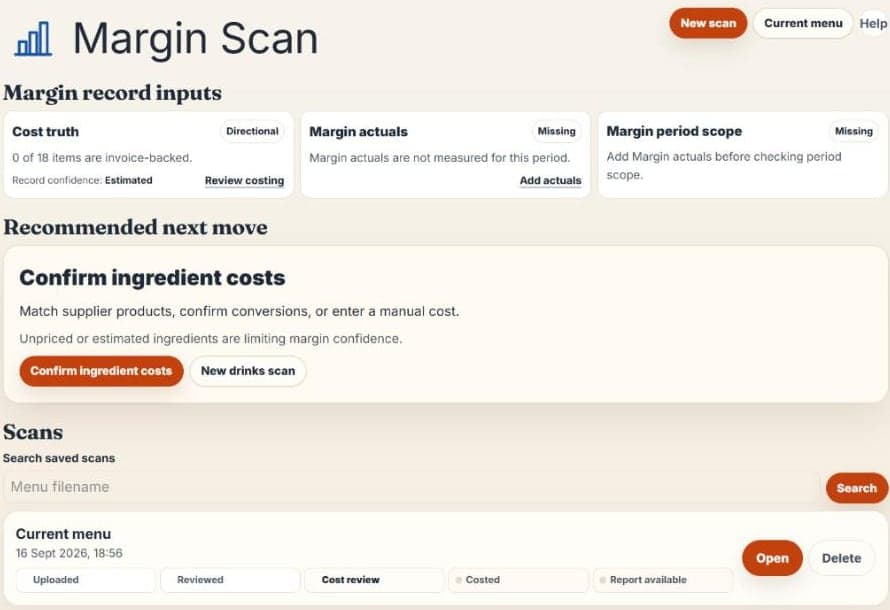
- Each scan moves through Uploaded, Reviewed, Cost review, Costed and Report available.
- Recommended next move tells you what to do next.
- Estimates are kept apart from stronger costs. Check the report's Decision confidence before you act on it.
- Start from New scan, Current menu or New drinks scan.
Inventory
Pro and above · Plus includes waste and supplier issues without the stock catalogue
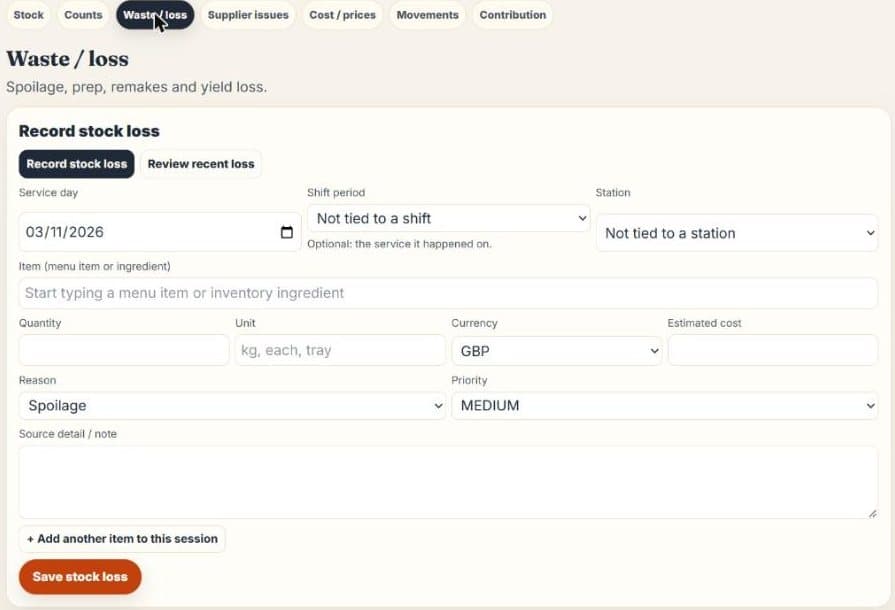
Stock counts, waste, supplier issues and item prices.
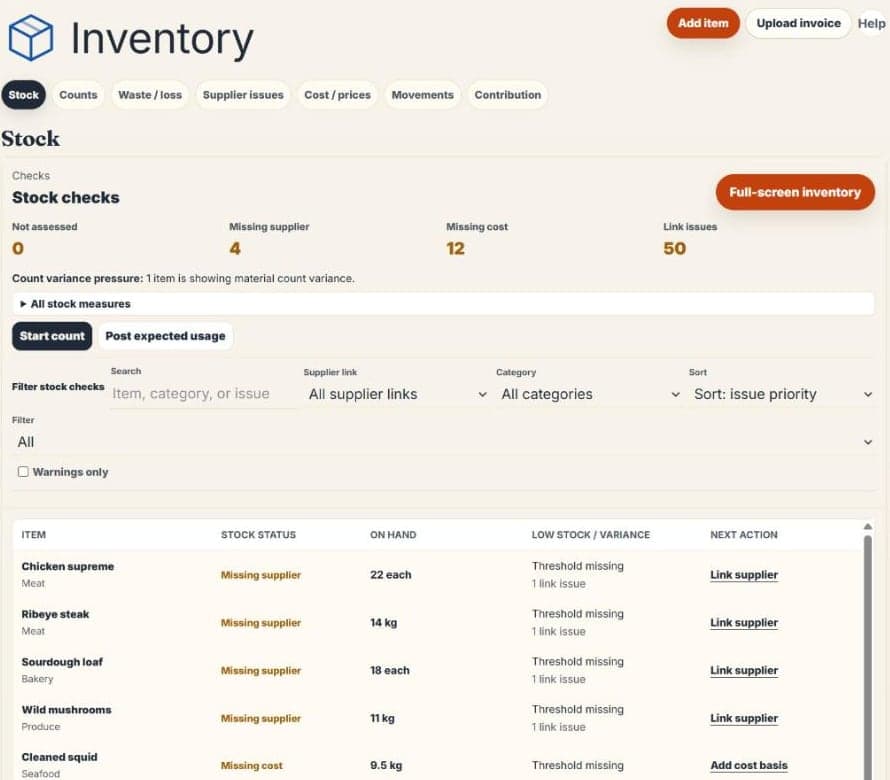
- Tabs: Stock, Counts, Waste / loss, Supplier issues, Cost / prices, Movements and Contribution.
- Upload invoice reads a supplier invoice into a draft for you to review.
- Stock variance needs two counts: opening count plus deliveries, minus closing count.
- No count means the value isn't recorded, not that stock is zero.
Banqueting
Cafe / Restaurant and Hotel workspaces
Upcoming function bookings by space.
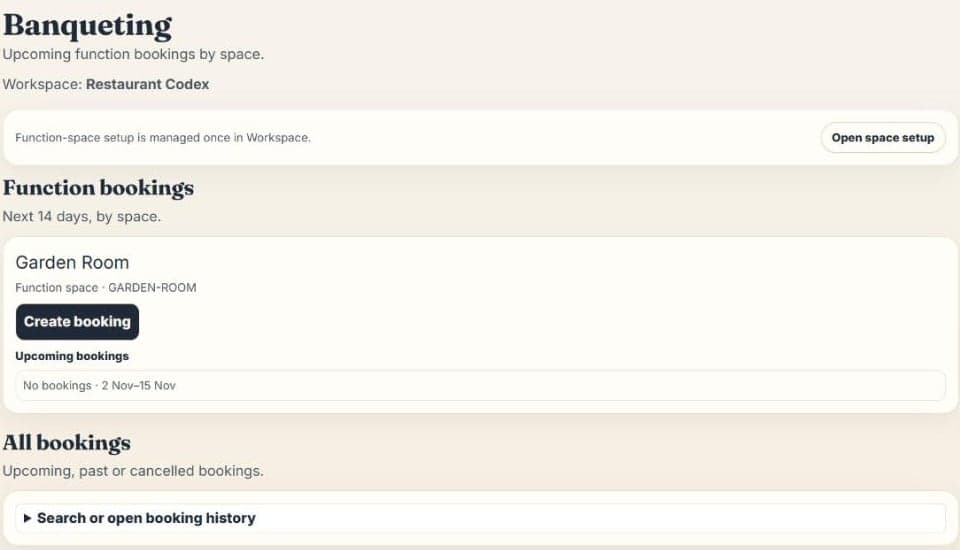
- Set up function spaces once, in Setup.
- Create booking for a space. The page shows the next 14 days, with past and cancelled bookings under All bookings.
Floor and order pad
Cafe / Restaurant and Hotel workspaces · Supervisors and Managers can view floor plans but not edit them
Floor plans map your tables. The order pad takes orders on them, sends food to the kitchen and drinks to the bar, and closes tables. Payments stay on your till.
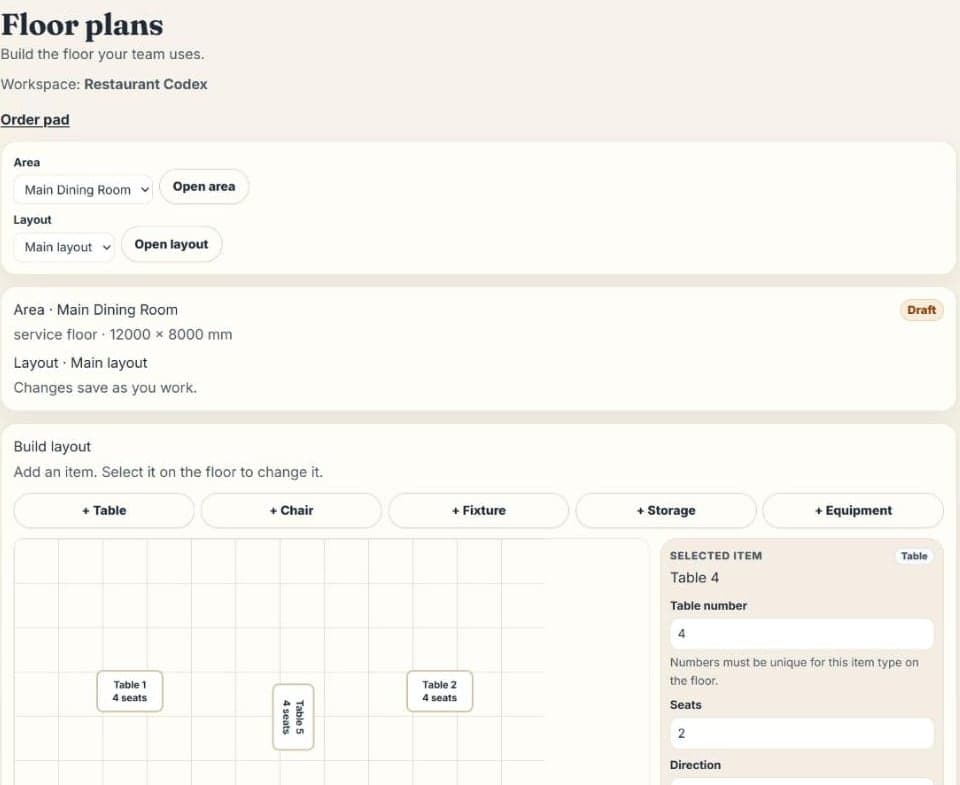
- Add tables, chairs, fixtures, storage and equipment. Changes save as you work. Tap Finish layout when it's right.
- Each round shows on the kitchen or bar screen, and staff mark it Start, Ready and Collected.
- After service, a manager uses Confirm a service's sales, and the totals reach Demand.
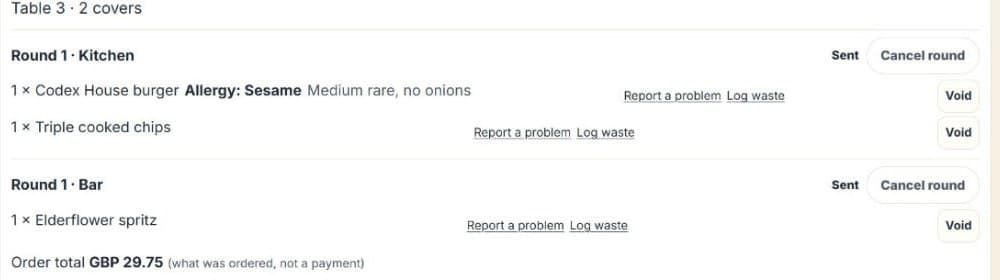
Full steps are in the order pad guide.
Rooms
Hotel workspaces only
Accommodation details, stays, room history, restrictions and readiness observations. It's kept separate from Banqueting because a bedroom stay and a function booking are different things.
On shift
Tablet
Plus and above
A station screen for what that station should do now, on any tablet or phone.
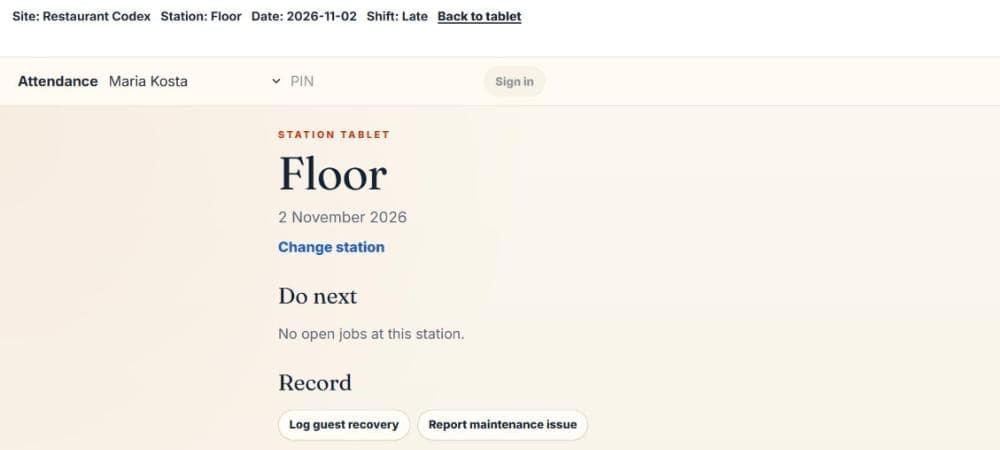
- Tap Open Tablet and pick a station, or All stations.
- Do next lists open jobs for the station, and Record has quick capture buttons.
- Attendance signs staff in with name and PIN. That's where worked hours come from.
- Register and manage tablets keeps a device on its station. Operators can also raise a short flag for a manager.
Shift close
Supervisor and above, with access to every station · every plan
One signature for one shift period on one day, in Work → Close the shift.
- It covers waste sign-off, guest commitments, compliance checks, manager exceptions and flags.
- The signer chooses their own name and enters their PIN.
- It refuses if nothing awaits review or if records have no station.
- Signing means the records were reviewed and open problems were carried forward. It never says anything was fixed.
Handover
Everyone · Plus and above
What the next shift inherits: open work, gaps and changes.
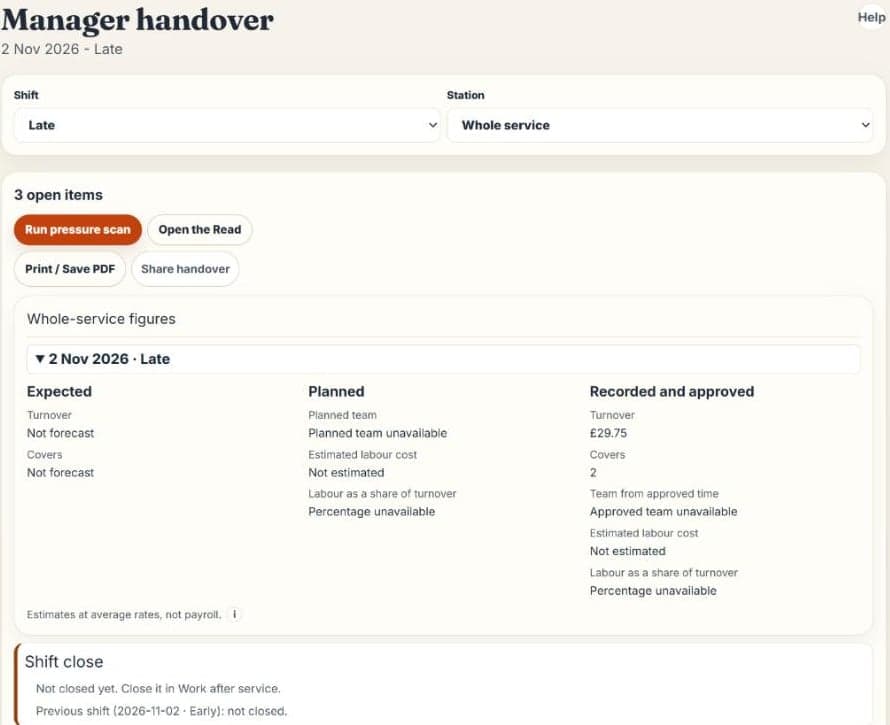
- Choose a shift and either a station or the whole service.
- Acknowledging means you received it, not that problems are fixed.
- Print / Save PDF and Share handover leave out Whole-service figures, which only managers see.
- Changes count from the last acknowledgement, or from the Read or shift start.
Running the business
Setup
Owner, Area manager, Manager
Your site's shifts, stations, currency and scan perspective. The rest of the app uses these settings.
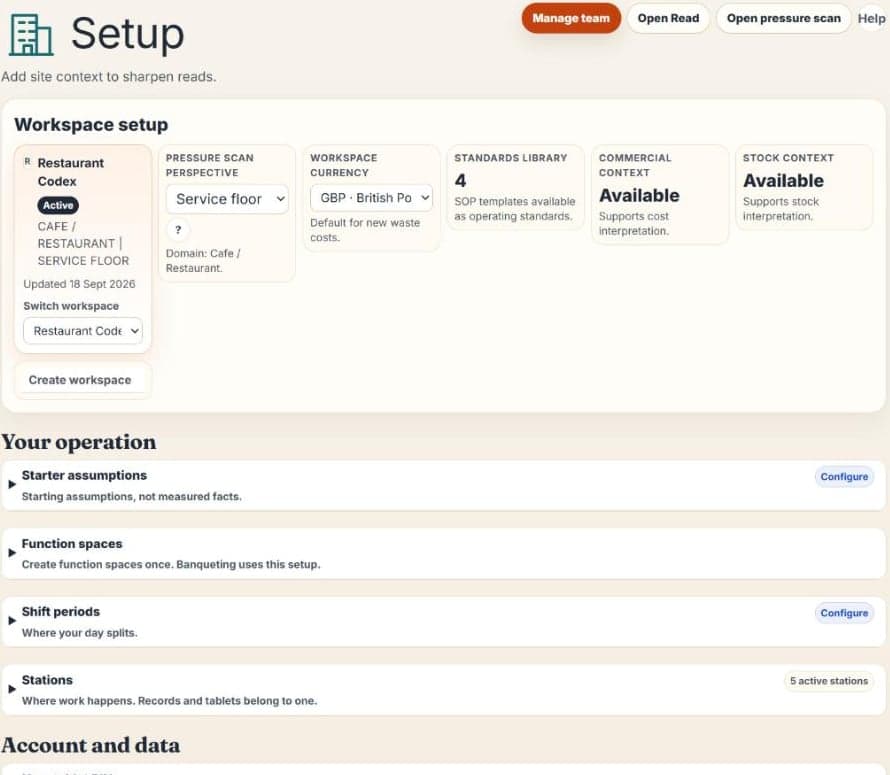
- Shift periods and Stations are the two to check first. Stations are disabled rather than deleted, so their history keeps its meaning.
- Starter assumptions are what you said a normal week looks like. Changing them restarts Read comparison.
- Function spaces feed Banqueting.
- Switch workspace and Create workspace are for multi-site accounts on Business.
Team and PINs
Inviting higher roles needs Pro or above
Open Setup → Manage team to invite people, say where they normally work, and manage each person's role and access.
- Your login opens the app. Your PIN signs attendance, sign-offs, hours and shift closes.
- A first PIN is typed twice. Changing it needs the current PIN.
- An Owner or Area manager can clear someone else's forgotten PIN.
Operational Intake
Bring in the workbook you already run on: team, rota and sales, or a pasted table.
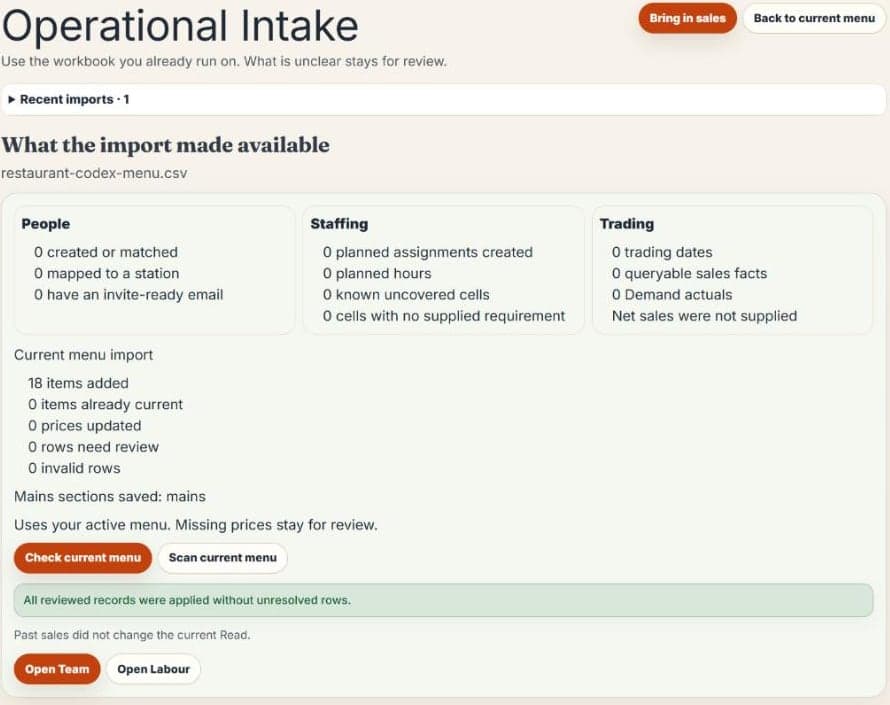
- Nothing applies until you confirm. Anything unclear stays for review.
- Bring in sales imports past sales. Past sales don't change the current Read.
- Sales rows match the menu as it stood at the end of that period.
Compare and owner tools
Portfolio Compare: Business · Weekly owner review and Measured money: Pro and above
Where pressure repeats across your sites, and what the numbers say by week or month.
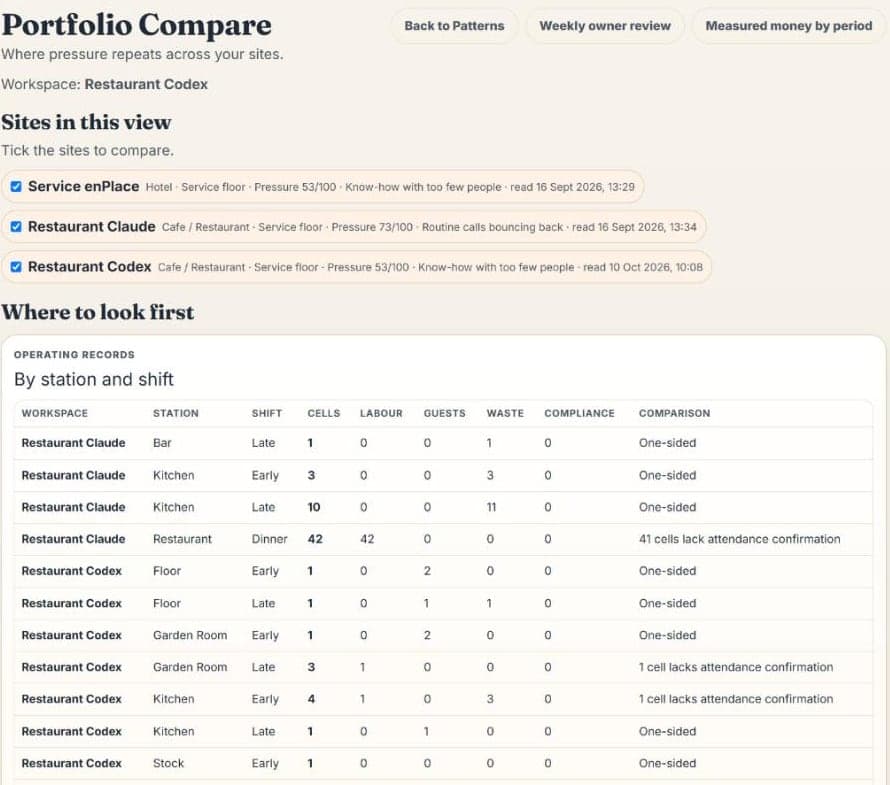
- Tick the sites to compare. Where to look first breaks records down by station and shift.
- Weekly owner review opens saved weekly snapshots. Later changes never rewrite one.
- Measured money by period groups waste cost and margin inputs for a finished week or month, by currency. These figures aren't savings.
Your data
Owners and authorised Area managers
Data controls in Setup exports your operating records as JSON and CSV, with the originals you uploaded.
- A finished download lasts 24 hours, and its manifest lists what was left out.
- Operating history is corrected forward, so counts, stays and plan history can't be deleted.
Help, language and theme
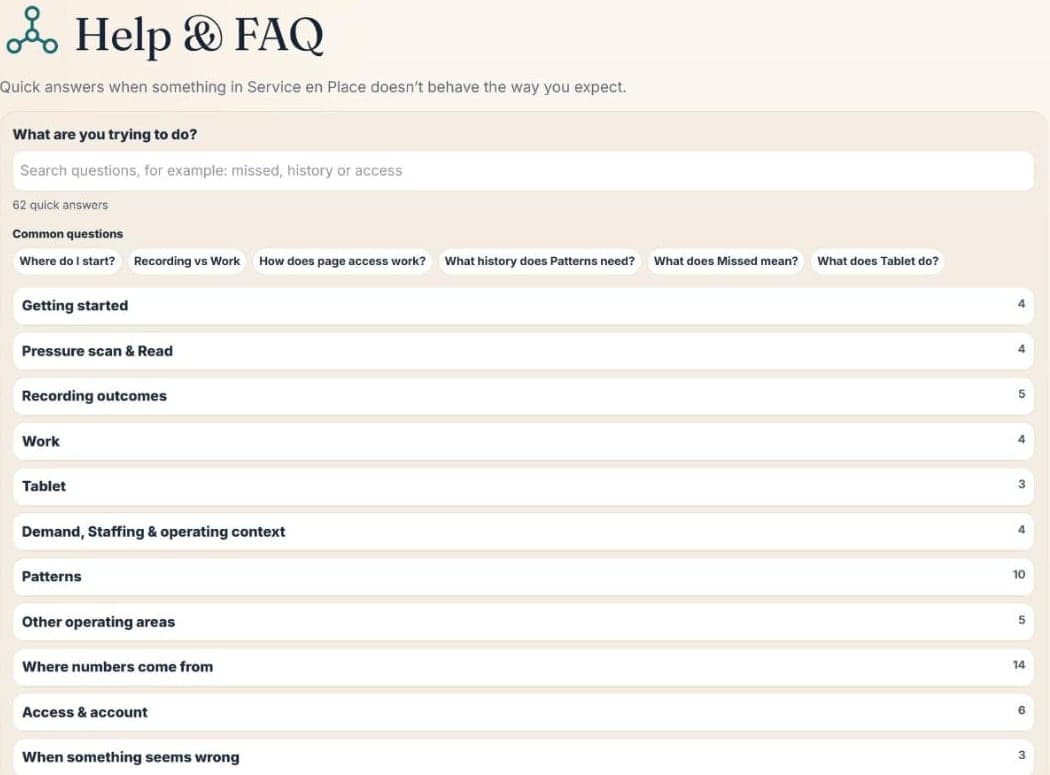
- Every main page has a Help button explaining what the page does.
- Help & FAQ in the sidebar has searchable answers, and the support address.
- The sidebar switches between English and Greek, which is in beta, and between Light and Dark.
Reference
Who can do what
| Role | Main job | Adds |
|---|---|---|
| Operator | Works the floor: completes Work and records what happened | My shift, Read, Work, Tablet, Handover, raising a flag |
| Supervisor | Runs the shift | Record areas, updating records during service, signing Shift close |
| Manager | Runs assigned workspaces | Pressure scan, Patterns, Setup, resolving exceptions and flags |
| Area manager | Manages the organisation's team, workspaces and settings | Invalidating a Read, starter assumptions, clearing others' PINs |
| Owner | Has full control | Billing visibility and everything above |
Role is one part of access. Your plan and your assigned workspaces, areas and stations also decide what you see.
Plans
| Plan | For | Includes |
|---|---|---|
| Free | An owner trying it at one site | 3 completed Reads, Work for up to 2 Operators, one Margin Scan costed by hand, and 10 real records to try |
| Plus | One person directing one team | Unlimited Reads, operating records, Patterns, Handover, station tablets with named PIN completion, 30 Margin Scans a month, and Work for up to 10 Operators |
| Pro | Teams sharing responsibility | Higher-role invites, posting your own Work, delegation, reassignment, verification, Inventory, weekly owner review and measured money |
| Business | Several sites | Workspace switching, Portfolio Compare, and assignments and oversight across workspaces |