Your first week with Service en Place
You don't need to fill in every section. One Pressure scan gives you a first move for your next service, and the rest can wait until you need it.
For owners and managers setting up a site. Floor staff can skip to If you work the floor. Pictures come from a test restaurant, so your names and numbers will differ.
The idea in four steps
- Pressure scanMark what is true about service right now.
- ReadGet one saved judgement and one first move.
- WorkGive the job an owner and a due time.
- PatternsSee what keeps repeating as records build up.
Alongside those four, Record is where you write down what really happened: waste, guest comments, breakages, covers and hours.
Words you'll see
- Shift period
- A service window you name yourself, such as Early, Late or Close.
- Station
- A place work happens, such as Kitchen, Bar or Floor.
- First move
- The one thing the Read recommends you do first.
- PIN
- Your four-digit signature. Your login opens the app; your PIN signs checks, hours and shift closes.
- Handover
- What the next shift inherits: open work, gaps and changes.
- Operator
- Someone on the floor who completes Work and records what happened.
Try it before you sign up
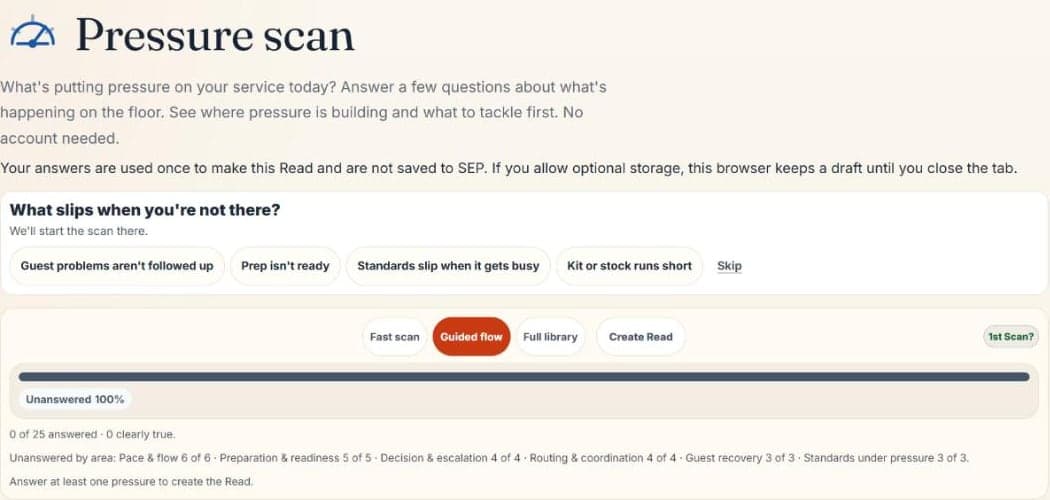
The public Pressure scan at app.serviceenplace.com/scan needs no account. You get a real Read for your service, and your answers are not saved to Service en Place.
Part 1: Set up your site
Create your account and say what you run
Sign up, then answer two questions: what kind of operation this is (Cafe / Restaurant, Hotel or Coworking), and what your first Read should look at. Most places start with The shift.
Service en Place adds starter stations and shift periods for you. You can rename or change them later in Setup.
Answer three questions about a normal week, if you like
Tap Make this more precise first to say what a normal peak looks like, how much slack the team has, and how written-down your routines are. It helps tell a normal rush from unusual pressure. You can skip it with Start my first Pressure scan.
Find your way around
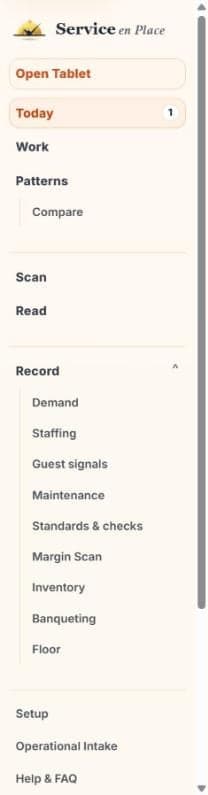
- Today is your starting page: what needs doing now.
- Scan, Read, Work and Patterns are the four steps.
- Record opens to show each area. Use only the ones your site needs.
- Open Tablet turns a device into a station screen.
- Setup holds your shifts, stations and team.
- Every main page has a Help button at the top.
Part 2: Your first scan and Read
Owners and managers
Run a Pressure scan
Open Scan, check the shift at the top is the right one, and mark each line Not true, Slightly true, Mostly true or Clearly true. Only mark what you can honestly see.
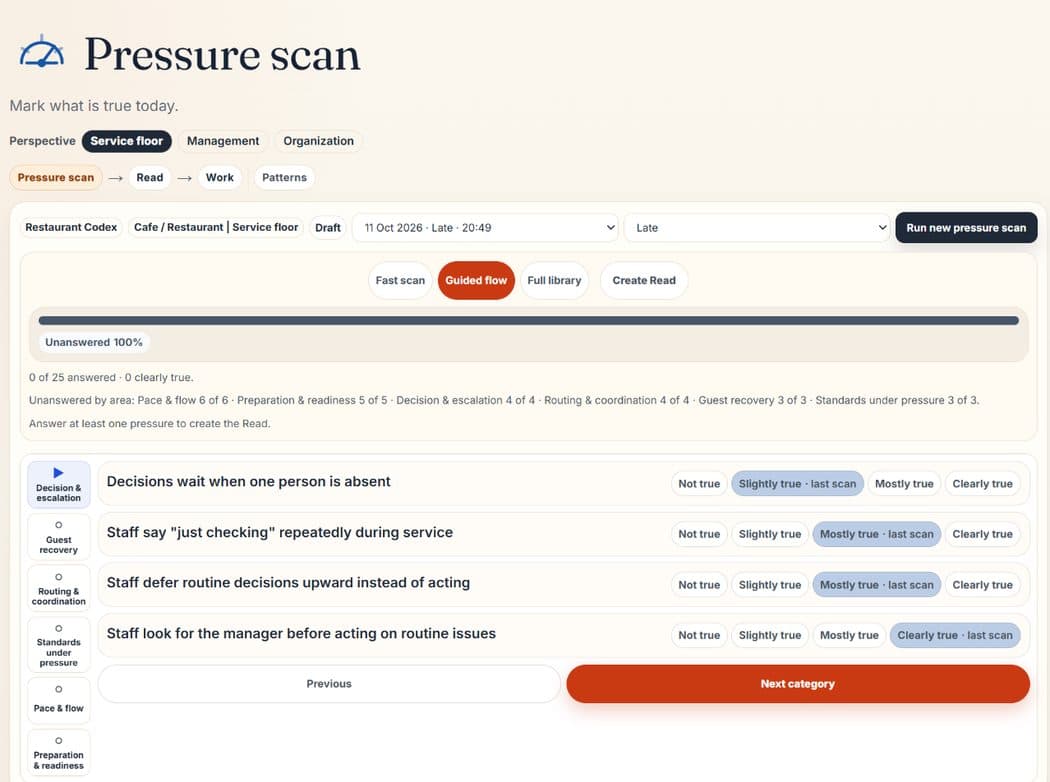
- Solid blue is your answer. A pale blue chip marked last scan is what you answered last time. It doesn't count until you choose.
- Fast scan and Guided flow take you through the questions. Full library lists them all.
- Your first scan may start by asking "What slips when you're not there?". That only sets which question comes first.
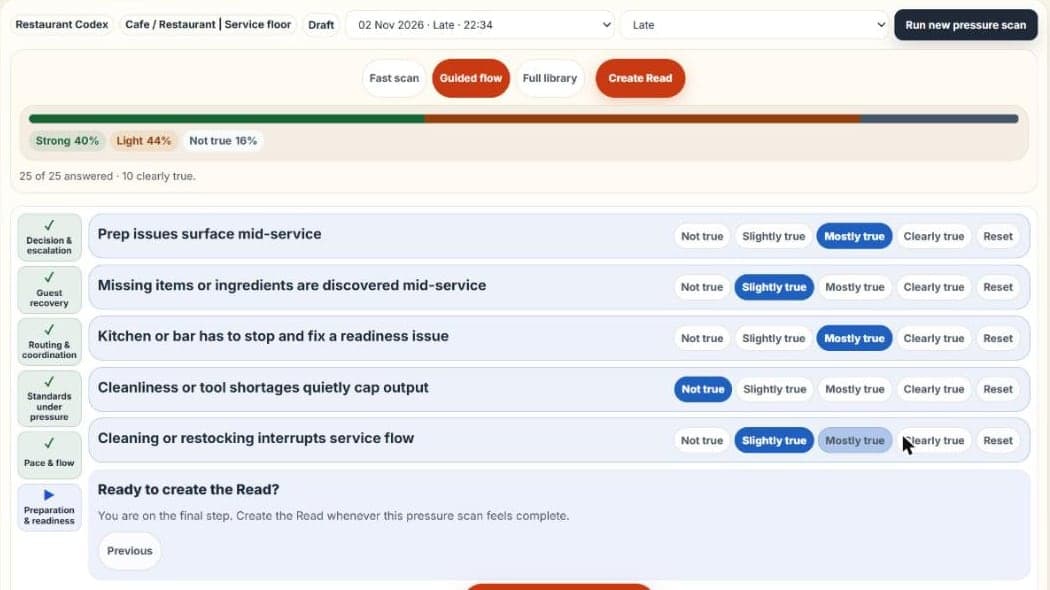
Tap Create Read
One answer is enough to create a Read, but the more you answer, the stronger it is. Your answers stay in the browser until you tap Create Read, so finish before you close the tab.
Look at your Read
Start at the top left: your main pressure, then the recommended move and its first step. The number on the right is the pressure level out of 100.
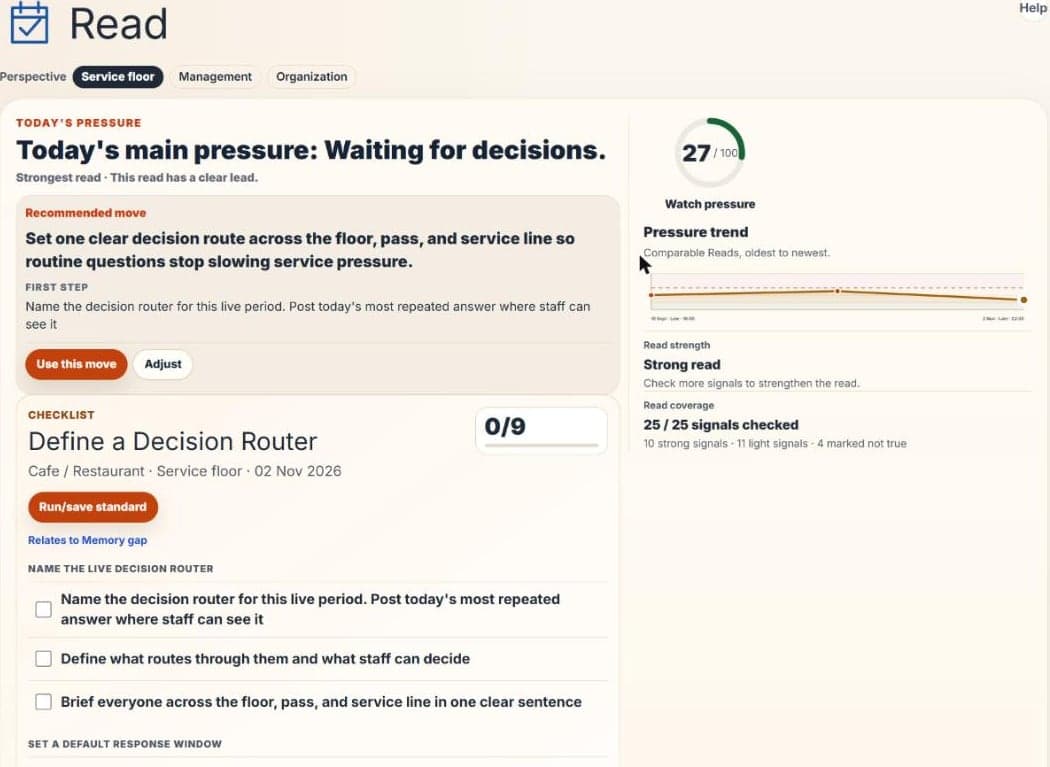
Levels: 0 to 19 calm, 20 to 39 watch, 40 to 59 manager action needed, 60 to 100 immediate.
Say what you'll do about it
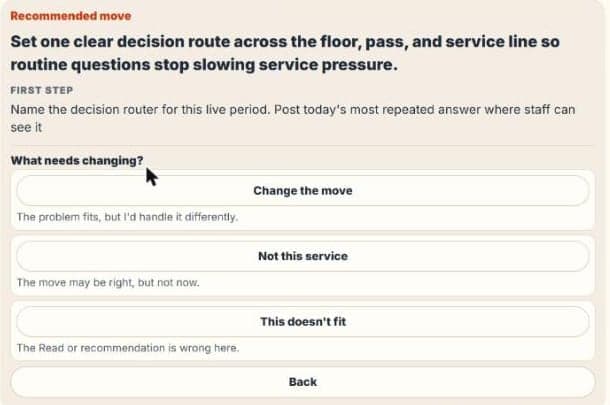
Tap Use this move if it fits. If it doesn't, tap Adjust. Disagreeing is fine, and your answer goes on the record without changing this Read or future ones.
To see why the Read chose this move, tap Why this move? below the checklist. It lists the answers behind it.
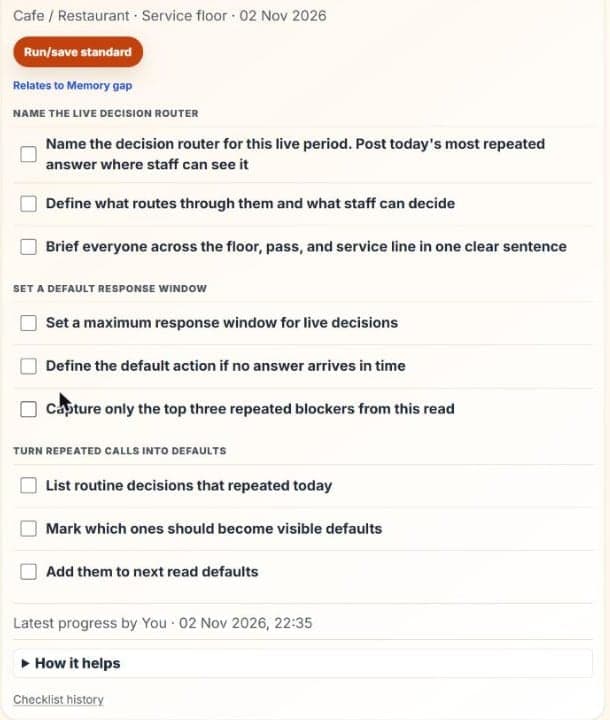
Tick the checklist as you go
Each Read comes with a checklist for its move. Tick items as they're done, and your progress is saved with the date and your name.
Part 3: Make someone responsible
Turn the move into Work
A Read doesn't create jobs by itself. There are two ways to do it, depending on the job. While Work is empty, its Open Read checklists button takes you straight to your Read's checklist.
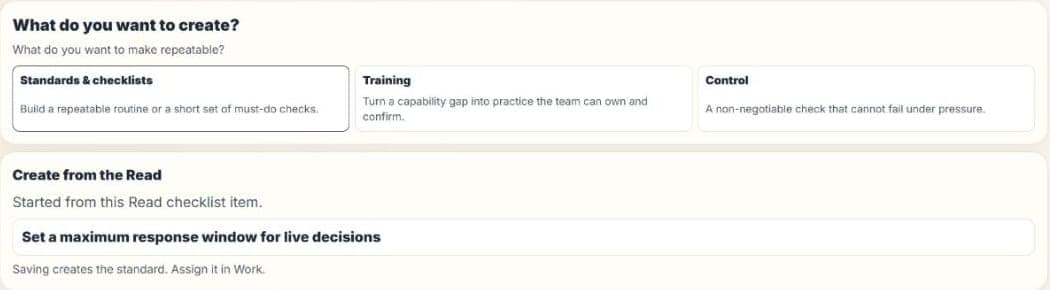
For a job that will come back again: tap Run/save standard on the Read. Standards & checks opens with the item ready. Save it, then tap Send to Work beside it in the Library. In Read checklists, some items offer Send to Work directly. Saved standards need the Plus plan or above.
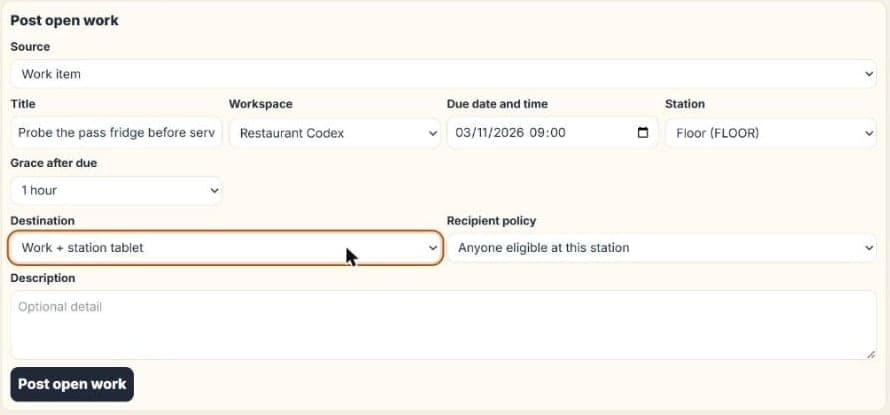
For a one-off job: open Work and tap Post open work. Give it a title, a due time and a station. Choose Work + station tablet if the station should see it too. Posting your own jobs needs the Pro plan or above.
Check it's on the board
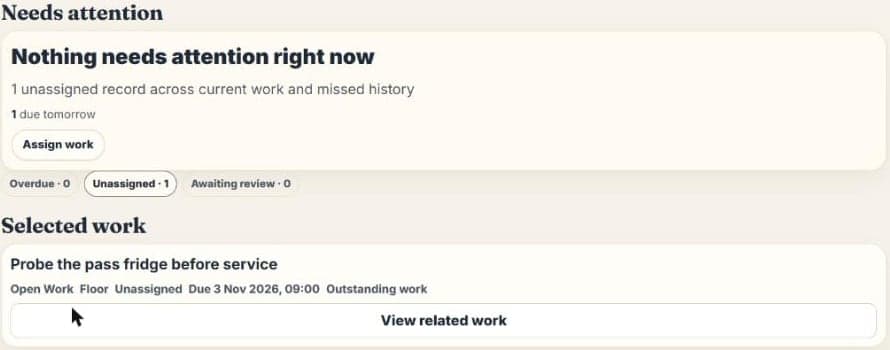
Work shows what needs attention, and each job shows its station, owner and due time. Use Assign work to name someone. An unassigned job stays open until someone takes it.
If you posted a job that's no longer needed, open it and use Withdraw this work. Give a reason. It leaves the board and stays in history, and it doesn't mark any problem as solved.
Set your PIN, and ask your team to set theirs
Go to Setup → Your tablet PIN and type a four-digit PIN twice. Everyone sets their own. To change it, you need your current PIN. If someone forgets theirs, an owner or area manager can clear it so they can set a new one.
Invite your team from Setup → Manage team.
Put a tablet on the pass
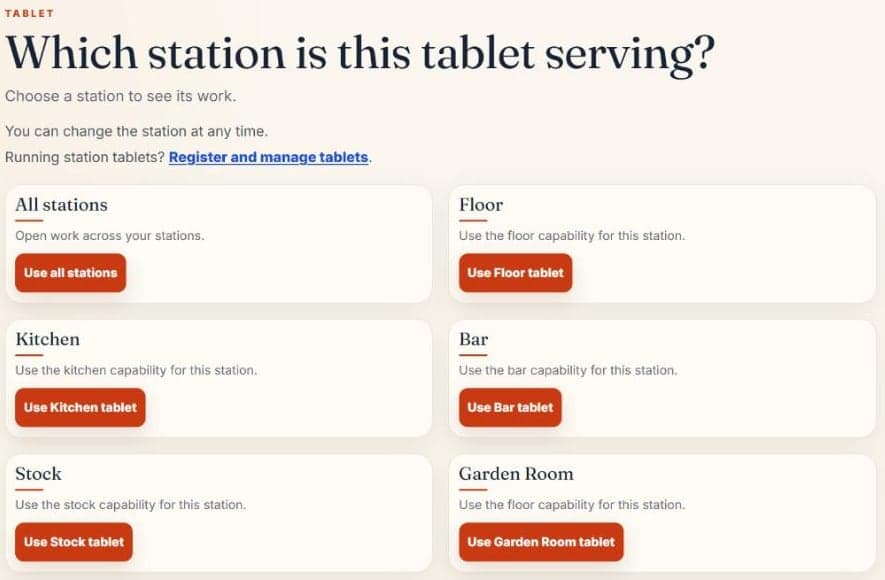
On any tablet or phone, sign in, tap Open Tablet and choose a station. Tablets need the Plus plan or above.
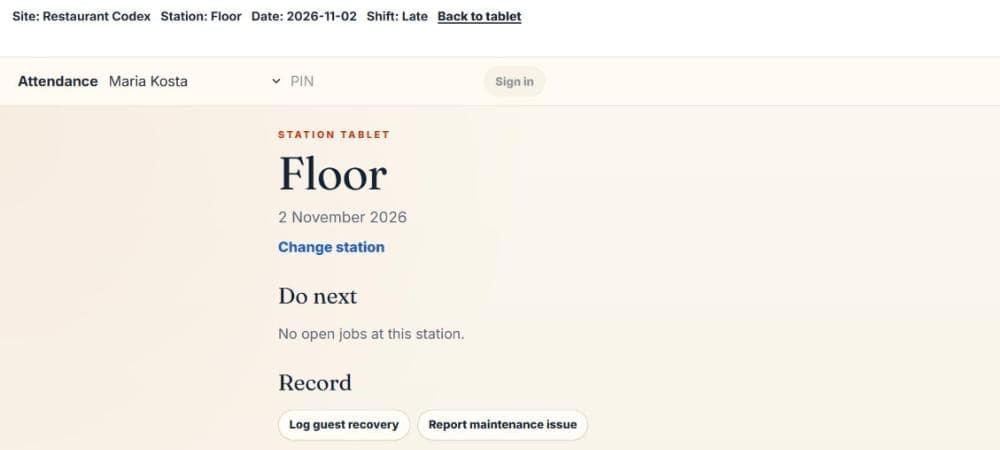
The station screen shows Do next and quick Record buttons. Staff pick their name and enter their PIN at Attendance to sign in for the shift. Jobs due on a later day don't appear here yet.
Part 4: During and after service
Record one real thing
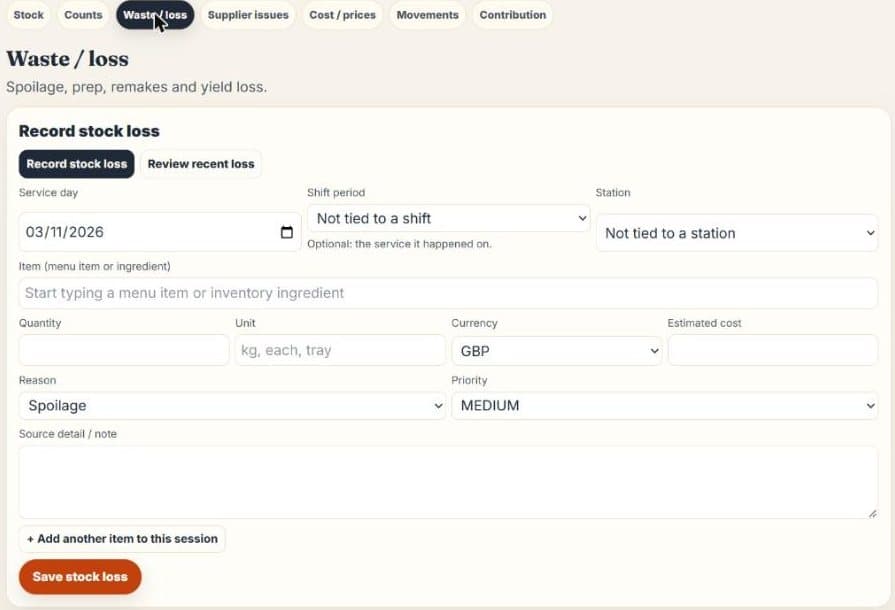
Next time something goes wrong, write it down: a guest complaint, a broken fridge or a tray of spoiled prep. The quickest way is Today → Report an issue, or the Record buttons on the tablet.

Add the shift and station if you can. That's what lets Patterns show where something keeps happening later.
Close the shift
After service, go to Work → Close the shift. It appears when the shift has records to review. One person chooses their name, enters their PIN and signs once for that shift period.
Signing says the shift's records were reviewed and its open problems were seen and carried forward. It doesn't say anything was fixed. A manager resolves problems afterwards and writes down what changed.
Pass it on with Handover
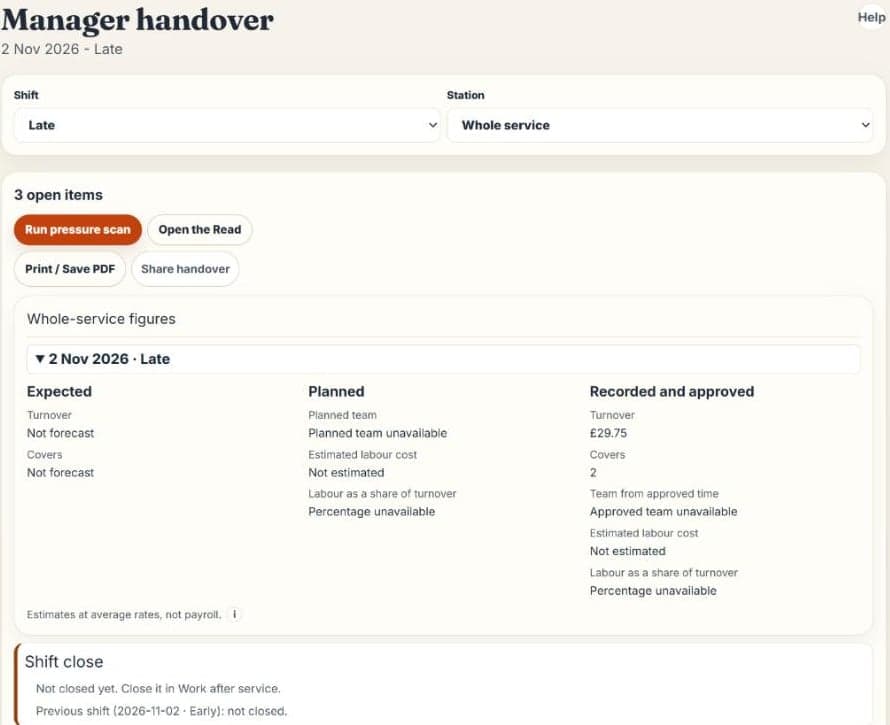
Open Handover, choose the shift and read what the next person inherits. Acknowledge it, then use Print / Save PDF or Share handover. Missing records show as missing, so a gap never reads as "all fine".
Part 5: The days after
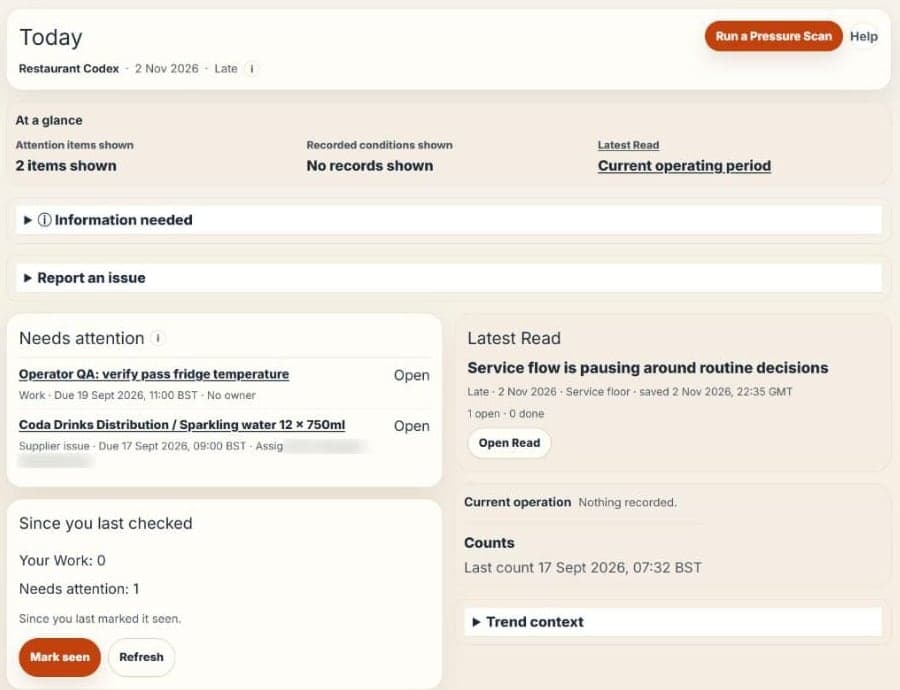
Start each day on Today
Open each item under Needs attention. Evidence gaps lists records that are missing or didn't load. Between shifts, Today shows the next shift, or the last one that ended if none is left today, and says which.
Scan again when things change
Run another scan when the picture has really changed, such as a key person off or a sudden rush. Don't rescan to rewrite an old Read. If you rescan within a shift, the latest Read is the one that counts, and the earlier one stays in history.
Let Patterns build up
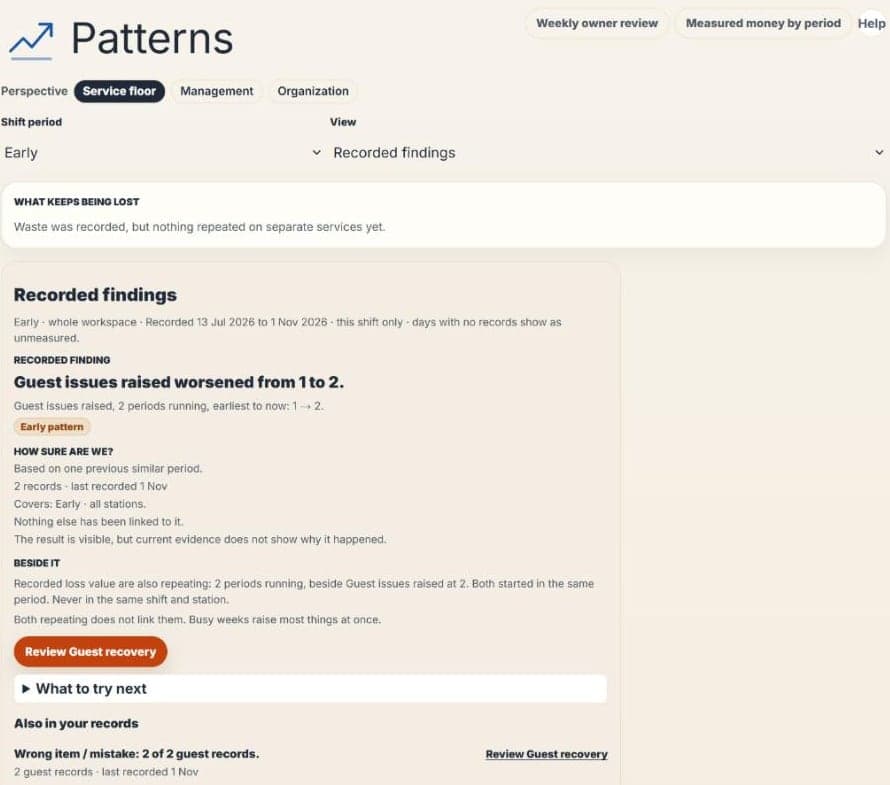
Patterns compares each area in 4-week periods, so it needs some weeks of records. Until then it may show only what's happening now. Pick a shift period and a view, and start with Recorded findings. Patterns needs the Plus plan or above.
Three things that surprise people
Done doesn't mean fixed
Completing Work says the action was carried out. The problem counts as resolved only when the area that owns it records that.
A Read never changes
A Read is locked when it's created. New records appear separately under Since this Read. If reality has changed, run a new scan.
Missing isn't zero
No waste records doesn't mean no waste. Service en Place shows a gap as a gap, so figures may say "unmeasured" until records back them up.
If you work the floor
- Today shows you My shift: your open Work, your station and shift, quick recording and the latest Read.
- You need a PIN to sign hours and checks. It's your signature, so keep it to yourself. If you don't have one yet, ask your manager.
- When you complete a check, choose what happened: Checked clear, Issue found or Unable to complete. All three finish the job for you, and a problem stays visible for your manager.
- If something needs a manager, raise a flag from Today or the tablet.
- Your own training is under My training on My shift.
Where next
- The core features guide explains every part of the app and who can use it.
- The order pad guide covers taking orders, sending them to the kitchen and bar, and confirming sales.
- Stuck on a page? Tap Help at the top of it, or search Help & FAQ in the sidebar. The support address is under When something seems wrong.